FileMaker Data API Tools: User Guide
This is the manual for operators and developers who use the extension to work with a FileMaker database from VS Code. It covers version 1.8, including what changed since 1.7 (listed under New in 1.8). Earlier changes remain under New in 1.7, New in 1.6 and New in 1.5. The screenshots show a mock FileMaker Data API with made-up data. They are from an older version; version labels and some field styling differ, and panels now follow your editor theme. You can open it from VS Code with FileMaker: Open User Guide.
You can also read the User Guide on the website, the upgrade notes and the changelog by version. The website follows the guide in this repository and is rebuilt when changes reach the main branch. The privacy policy says what the extension stores and never sends.
Command names below are the titles you see in the Command Palette (Cmd+Shift+P on macOS, Ctrl+Shift+P on Windows and Linux). Every command starts with FileMaker:.
Contents
- First run in 10 minutes
- Before you start
- What's new in 1.4
- Install
- Connect to a server
- The FileMaker sidebar
- Find records: Query Builder
- View, edit, create and delete records
- Upload to a container field
- Batch export and batch update
- Run scripts
- Copy a request as code
- Schema snapshots and diffs
- Generate types, a client and snippets
- FM Web and Layout Mode
- Offline mode
- Enterprise mode and roles
- Plugins
- Using AI with FileMaker
- User settings vs Workspace settings in plain words
- Settings reference
- Security behavior you will notice
- Troubleshooting
- FAQ
- Connection won't work? Diagnose Connection
- Command reference
Connection won't work? Diagnose Connection
Open the Command Palette and run FileMaker: Diagnose Connection. Choose the active connection, another saved profile, or Type a server address (without saving) for a quick check. Enter an address such as https://fm.example.com or https://fm.example.com:8443. A saved address with a path prefix, such as https://fm.example.com/fm, works too. Nothing is saved for a typed check.
The report opens as a new Markdown document in your editor and follows your editor theme. Each check shows PASS, WARN or FAIL and the time it took. It checks the address, looks up the server name, tries the port, reads the secure connection's certificate, checks VS Code's network settings, and asks the Data API for its product information. It does not sign in, send credentials, or change your certificate trust. Each network check has an eight-second limit. Use Cancel on the progress notification to stop.
Start with Most likely cause at the end of the report. For a certificate with no server names (including FileMaker Server's default certificate), ask your administrator to confirm the fingerprint, then run Connect and choose Trust. For an expired certificate, ask the administrator to renew it. The report shows the full SHA-256 fingerprint in uppercase pairs separated by colons, just like the Trust dialog. A server sending only its leaf certificate may use a private root authority or may be missing an intermediate; the leaf alone cannot distinguish them. If your organization runs its own authority, set its CA file (Certificate authority file) in the profile. For a public authority such as Let's Encrypt, ask the administrator to check and install the full server chain. The report puts missing-intermediate advice first only when a CA file is already configured, the server sends only the leaf, and verification still fails with an issuer error; a missing intermediate is then likely, though the CA file could also be wrong. If your profile uses the older Allow self-signed setting, it already accepts any certificate; switch to trusting the confirmed fingerprint instead. A certificate from a public authority is usually the easiest long-term solution.
Trusted-fingerprint profiles and older Allow self-signed profiles work with VS Code's default http.proxySupport setting on direct connections. The extension uses a connection path VS Code does not replace. Custom CA profiles still go through VS Code and system proxies as before. A trusted-fingerprint profile that needs a proxy is refused with PIN_THROUGH_PROXY: exclude the server in the proxy settings or, for an environment proxy, add it to NO_PROXY. An older Allow self-signed profile behind an environment proxy keeps its previous proxy route. If that route cannot apply its certificate settings, the report may suggest trying http.proxySupport set to fallback. Proxy setting and environment-variable values are hidden in the report. The DNS, port and certificate checks connect directly; the Data API check uses the extension's actual connection settings. For a proxy profile, this check diagnoses the FileMaker Server address, not the middleware's sign-in or certificate. It requests /fmi/data/vLatest/productInfo after any server path prefix; a custom API path can still need attention afterwards.
Connection diagnosis uses certificate date failures to recommend checking dates or renewing the certificate, rather than changing an already configured CA file. A Data API failure takes priority over advice to change an older certificate setting.
Diagnose Connection was checked on one real server on 2026-10-21 (its FileMaker Server version was not recorded): the server had a valid Let's Encrypt certificate and used TLS 1.2. Every step passed; no sign-in was attempted.
Choose Copy for bug report when the report is ready, or run FileMaker: Copy Connection Diagnosis for Bug Report later. Answer Hide the server address? before anything is copied. Hiding also removes the port and certificate details that could reveal the address. The report leaves out passwords, tokens, API keys, request headers and cookies. The copy command copies the original diagnosis, even if you have edited the open document.
Turn off offline mode before running a check. In Restricted Mode, you can check your own saved connection or type an address yourself; an address from the workspace's profile template is refused until you trust the workspace. This read-only check follows the same connection policy as Test Connection and does not need permission to edit records.
Command reference
FileMaker screens use the same fonts, buttons and boxed messages, and follow your VS Code theme. Read-only fields keep normal text contrast and have a dashed border and no resize handle. Unavailable controls use dimmer text. Page titles sit above the content panels, and input and button sizes match across screens. Empty status messages stay ready for screen readers to announce the first update. Layout Mode button labels stay readable when you point at them or select them with the keyboard. Expandable headings and separate tabs have the same height and rounded corners as other controls; joined tab strips stay joined. Effective Settings lines up with the other screens, and its Open User Settings and Open Workspace Settings buttons stay on one line. JSON boxes use the editor font. Layout Mode uses these styles around the page you are designing; the page itself keeps its own appearance.
The table lists every extension command. Titles have the FileMaker: prefix in VS Code. “Shown” describes palette visibility; “needs” describes additional requirements when you run the command. A profile means a saved connection profile. Server operations also need access to the server and the relevant FileMaker privileges. Feature settings, workspace trust, offline mode and enterprise policy still apply as described in the sections below.
| Title | What it does | When it is available |
|---|---|---|
| Open Getting Started Walkthrough | Opens the guided setup steps in VS Code. | Always shown. |
| Open User Guide | Opens this guide in a Markdown preview. | Always shown. |
| Diagnose Connection | Checks a saved server or a typed address, without signing in, and explains likely fixes. | Always shown; turn off offline mode. Uses saved profiles or an address you type; never reads a workspace template. |
| Copy Connection Diagnosis for Bug Report | Copies the latest connection diagnosis, with a choice to hide the server address. | Always shown; run Diagnose Connection first. |
| Test My Server | Reads a record, checks the connection and opens a report you can share. | Shown with a profile; needs an active connection and offline mode off. Optional writes and scripts also need trust, permission and their feature switches. |
| Show Diagnostics | Opens a redacted report of the extension, settings and connections. | Always shown. |
| Show Effective Settings | Shows the settings in effect and where their values come from, aligned with other screens, with single-line buttons to open User or Workspace Settings. | Always shown. |
| About / Show Version | Shows installed extension, build and editor details. | Always shown. |
| Add Connection Profile | Opens the connection wizard to test a connection and save a new profile. | Always shown; needs write operations allowed by offline mode and policy. |
| Edit Connection Profile | Opens a saved profile in the connection wizard, where you can trust or forget a certificate without changing a VS Code setting. | Shown with a profile; needs an unlocked profile and write operations allowed. |
| Remove Connection Profile | Removes a profile, its saved queries and secrets after confirmation. | Shown with a profile; needs an unlocked profile and write operations allowed. |
| Connect | Signs in, selects the active profile and offers a layout for inspection. | Shown with a profile. |
| Disconnect | Ends a profile's session and clears it as active if selected. | Shown with a profile. |
| Show Connection Menu | Offers connection actions from the status bar menu. | Always shown; actions depend on connection state. |
| List Layouts | Opens a JSON list of the profile's layouts. | Shown with a profile. |
| Run Find (JSON) | Prompts for find, sort and paging options and opens the result as JSON. | Shown with a profile; choose a layout. |
| Get Record by ID | Reads one record and opens it as JSON. | Shown with a profile; choose a layout and record ID. |
| Open Record Viewer | Shows fields in layout order, with Copy beside each field name and related row counts below. Direct connections can Load more. | Shown with a profile; choose a layout. |
| Open Query Builder | Opens the find form and results in layout field order, with the right boxes for search values. An empty search offers List records instead. | Shown with a profile. |
| Open Layout Metadata | Opens layout metadata, field count and cache status as JSON. | Shown with a profile; needs metadata support for the chosen layout. |
| Select Layout for Inspector | Selects a layout and focuses the Layout Inspector. | Shown with a profile. |
| Refresh Layout Inspector | Reloads the currently inspected layout. | Shown with a profile; select a layout in the inspector first. |
| Refresh Schema Cache | Clears schema and client layout caches and refreshes Connections. | Shown with a profile. |
| Open Script Runner | Opens a panel to select and run a script, with optional record context. | Shown with a profile; needs script running allowed by trust, offline mode and policy. |
| Copy Request as Code… | Copies a chosen request as curl, fetch, HTTP, Postman or TypeScript. | Shown with a profile; prompts for request details and format. |
| Save Current Query | Asks the open Query Builder to save its current query. | Shown with a profile; needs Query Builder open. |
| Run Saved Query | Runs a saved find and opens its result as JSON. | Shown with a profile; needs a saved query whose profile still exists. |
| Open Saved Query | Loads a saved query into Query Builder. | Shown with a profile; needs a saved query. |
| Manage Saved Queries | Offers run, open, edit, delete and export actions for a saved query. | Always shown; needs a saved query. |
| Export Saved Queries (JSON) | Saves the saved-query collection to a JSON file. | Shown with a profile. |
| Import Saved Queries (JSON) | Imports saved queries from a chosen JSON file. | Always shown. |
| Delete Saved Query | Removes a selected saved query after confirmation. | Shown with a profile; needs a saved query. |
| Show Request History | Lists recent requests and opens a selected entry's details as JSON. | Shown in power-user mode; needs recorded requests. |
| Refresh Connections | Refreshes the FileMaker Connections tree. | Connections toolbar action; hidden from the Command Palette. |
| Capture Schema Snapshot | Saves the chosen layout's current metadata as a schema snapshot. | Shown with a profile; needs layout metadata support. |
| Diff Schema Snapshots | Compares two saved snapshots for a layout. Opens with Show only changes ticked; clear it to see all fields. | Shown when snapshots exist; needs two snapshots for the chosen profile and layout. |
| Diff Against Latest Snapshot | Compares current layout fields with its latest saved snapshot. | Shown when snapshots exist; needs a snapshot and current layout metadata. |
| Open Schema Snapshot JSON | Opens a saved schema snapshot as JSON. | Shown when snapshots exist. |
| Write AI Context | Writes selected layout schemas and script names to an AI context Markdown file. | Shown with a profile; writing inside the workspace needs trust. |
| Generate Types for Layout | Writes and opens TypeScript types for one layout. | Shown with a profile; needs workspace trust and a layout. |
| Generate Types for All Layouts | Writes TypeScript types for every layout in the profile. | Shown with a profile; needs workspace trust. |
| Generate Snippets for Layout | Writes and opens editor snippets for a layout. | Shown with a profile; needs workspace trust and a layout. |
| Generate TypeScript Client | Generates a typed client for selected layouts in a chosen folder. | Shown with a profile; needs workspace trust. |
| Open Generated Types Folder | Creates the configured types folder if needed and reveals it in the file manager. | Always shown; needs a trusted workspace folder. |
| Open Record Editor | Shows an existing record in layout order, with the right kind of box for each field. Keeps number-looking text as text and warns before saving text with a NUL character. | Shown with a profile; needs record editing enabled and allowed, a layout and a record ID. |
| Edit Record by ID | Prompts for a record ID and opens the record editor. | Shown with a profile; needs record editing enabled and allowed and a layout. |
| Create Record | Opens the editor in create mode, loads the layout field list, and warns before sending text with a NUL character. | Shown with a profile; needs record editing enabled and allowed and a layout. |
| Delete Record | Deletes a chosen record after confirmation. | Shown with a profile; needs record editing enabled, workspace trust and write operations allowed. |
| Upload to Container | Uploads a chosen file to a record's container field. | Shown with a profile; needs record editing enabled and allowed, trust, a record and a container field. |
| Batch Export (Find) | Saves matching records to CSV or JSONL safely as a background job, with missing related row notes and an optional CSV format for Excel. | Shown with a profile; needs batch operations enabled and workspace trust. |
| Batch Update from CSV/JSON | Previews or applies updates, checks exported record versions unless you choose to overwrite, skips calculation, summary and container columns and later rows with editable values for the same record, and leaves empty CSV cells unchanged; refuses rows containing a NUL character. | Shown with a profile; needs batch operations enabled, trust and batch updates allowed by policy and offline mode. |
| Cancel Job | Stops sending new work for a running job, waits for pending requests and keeps partial results. | Always available in the Command Palette; also on running jobs in the Jobs view and jobs menu. |
| Show Jobs | Lists active and recent jobs once, shows counts and record details, and offers cancellation or Copy failures. After a restart, each saved list keeps at most 1,000 entries and marks any shortened list. | Always available in the Command Palette; explains when there are no jobs. |
| Create Environment Set | Groups at least two profiles for comparison. | Shown in enterprise mode; needs two profiles and write operations allowed. |
| Compare Environments | Shows layout presence and schema comparisons across an environment set. | Shown in enterprise mode; needs an environment set and its profiles. |
| Diff Layout Across Environments | Shows field differences for one layout across an environment set. | Shown in enterprise mode; needs a set with at least two existing profiles. |
| Export Environment Comparison Report | Saves an environment comparison as JSON or Markdown. | Shown in enterprise mode; needs an environment set or previous comparison and environment export allowed by policy. |
| Open Environment Set JSON | Opens a selected environment set's definition as JSON. | Shown in enterprise mode; needs an environment set. |
| Open Diagnostics Dashboard | Opens request metrics and recent request history in a dashboard. | Shown in power-user mode. |
| Show Circuit Breaker Status | Opens a Markdown report of connection circuit breakers. | Shown in power-user mode. |
| Reload Plugins | Reloads configured workspace plugins. | Shown in power-user mode; loading needs trust and plugin installation allowed by policy. |
| List Active Plugins | Lists loaded plugins and opens a selected plugin's details as JSON. | Shown in power-user mode; needs a loaded plugin. |
| Toggle Offline Mode | Toggles your offline setting and reports the effective mode. | Always shown; workspace or policy settings can keep offline mode on. |
| Refresh Offline Metadata Cache | Reads layouts and metadata into the offline cache. | Always shown; needs a profile and workspace trust. |
| Initialize FM Web Project | Creates the .fmweb project structure and configuration. | Shown with a profile; needs a trusted workspace folder. |
| Sync FM Web Project Metadata | Saves layouts, scripts and fields for the selected project profile. | Shown with an initialized FM Web project; needs a profile and trust. |
| Select Active Profile | Selects the active profile and, in a trusted folder, saves it to the FM Web project (creating the project if needed). | Shown with a profile. |
| Open FM Web Layout Mode | Opens the visual editor for saved FM Web layouts. | Shown with an initialized FM Web project; needs trust. |
| Generate FM Web Next.js App | Generates or updates the local preview app and its shared field controls. | Shown with an initialized project and installed preview template; needs trust. |
| Generate FM Web Layout Page | Writes a saved layout for the preview, including which fields can be edited. | Shown with an initialized project; needs trust and a saved layout definition. |
| Start FM Web Preview Server | Starts the local bridge and launches the preview app in a terminal. | Shown with an initialized project and installed preview template; needs trust. |
| Set AI Access for Connection | Chooses no AI access, read access or write access for a profile. | Shown with a profile; needs an unlocked profile. |
| Switch AI Tools Off or On | Stops AI tools immediately or restores them after confirmation. | Shown while AI tools are active; also available from the AI status bar. |
| Show AI Activity | Opens the shared activity log for AI tools in VS Code, chat and external tools. Field values are not recorded. | Shown while AI tools are active. |
| Start New AI Session | Resets AI quotas, write counters and layout approvals after confirmation. | Shown while AI tools are active. |
| Start/Stop AI Server for External Tools | Starts or stops this window's local MCP server and remembers that choice. | Shown with a profile; starting needs confirmation, a local (non-remote) window, extension storage and a verifiable process identity. AI tool permissions still govern requests. |
| Copy MCP Config for Claude Code / Cursor | Copies MCP client configuration using the installed shim. | Shown with a profile; needs extension storage. The server must run before a client can connect. |
First run in 10 minutes
This is the shortest path from nothing to a first query. Each step links to the detail.
- Install. In VS Code open the Extensions view (
Cmd+Shift+X/Ctrl+Shift+X), search for FileMaker Data API Tools (publisher SureForgeTech) and select Install. - Open a folder (File > Open Folder...). Saved queries, schema snapshots, generated types and the offline cache are stored in the folder, so open one even if you only want to try a find. When VS Code asks whether you trust the authors of the folder, choose Yes, I trust the authors (see Trusted workspace and Restricted Mode).
- Check the server side. You need the Data API enabled, an HTTPS address, and an account whose privilege set has the
fmrestextended privilege (how). If the server still uses FileMaker's default certificate, expect one extra step in the next item (details). - Create a profile. Run FileMaker: Add Connection Profile. Choose Direct, enter a name, the server URL (
https://fm.example.com), the database name (without.fmp12), the account and the password. Select Test Connection. If a dialog asks whether to trust the server's certificate, read it (see Certificates) and decide. When the badge is green select Save Profile. - Connect. Select Connect Now in the notification that appears after saving (or run FileMaker: Connect). The sidebar fills with layouts.
- Run your first find. Right-click a layout and choose Open Query Builder, add a condition and select Run.
Something failed? Start with Troubleshooting and the Troubleshooting page: certificate errors are the most common first-run problem. Test Connection tells you which step failed.
First connection to a server with FileMaker's default certificate
A new FileMaker Server uses a built-in certificate until the administrator installs another one. Your computer does not trust it, so the first Test Connection stops at the certificate. This is expected and takes three clicks:
Before you start: you do not need to change a VS Code setting to trust a certificate. If your network uses a proxy, the server must be excluded from that proxy before a trusted certificate can be used.
- Select Test Connection in the wizard. The extension reads the certificate before it sends anything, then shows a dialog titled Trust this certificate for "<profile name>"? Its first line, "Why it was refused", uses the same wording as the error message: when the certificate looks like FileMaker Server's default one it says "This server uses a certificate that is not trusted: FileMaker Server's default certificate is self-signed. You can trust this certificate, or install a certificate from a public authority on the server." Neither the dialog nor the error suggests a CA file for a certificate without host names; a CA-file sentence appears only for a certificate that does list host names.
- Look at the certificate in the dialog. As read from one real FileMaker Server 22 (it is not known whether every installation is the same), expect a Subject naming
Claris Self Signed Certificate (Not for Production Use), an Issuer namingClaris Root Authority, Names: (none listed), the validity dates and a SHA-256 fingerprint. If the Subject and Issuer are something else, or you did not expect a certificate warning, stop and ask your administrator. If it looks right, compare the SHA-256 with the one your administrator gives you (or the certificate in the Admin Console), and select Trust this certificate. The test then runs again by itself. - When the badge is green, select Save Profile. The fingerprint is stored in the profile, so later connections need no click.
Why the trust dialog and not a CA file: the default certificate has no host names in it, so no certificate authority file can make it match the server's address on its own. Trusting that one certificate is the working option. The extension accepts exactly this certificate for this connection and refuses a different one later. It is not known whether FileMaker Server's default certificate is the same on every installation; if it is, pinning it only tells you when it changes, it does not tell you that you reached your server (see What pinning does and does not give you).
For production, do not rely on this. The default certificate is labelled "Not for Production Use". Install a certificate from a public certificate authority, plus the intermediate certificate, in FileMaker Server's Admin Console (Configuration > SSL Certificate), then restart the server as the console says. After that every computer trusts the server with no dialog; remove the pinned certificate by editing the profile and choosing Forget trusted certificate.
Before you start
You need:
- A FileMaker Server with the FileMaker Data API enabled. (FileMaker Cloud is untested: the extension has no Claris ID login, and whether a Cloud tenant accepts an account name and password on the Data API is not confirmed. Ask Claris or your administrator.) On Server this is in the Admin Console under Connectors.
- A server address your computer can reach over HTTPS, with a certificate your computer trusts. If your server uses FileMaker's default certificate, a company authority's certificate or a self-signed one, the connection wizard can trust it (see Certificates); a certificate from a public authority needs nothing.
- A FileMaker account whose privilege set has the
fmrestextended privilege (called "Access via FileMaker Data API"). To grant it, open the database in FileMaker Pro, choose File > Manage > Security, edit the account's privilege set, open Extended Privileges, and tickfmrest. Without it the sign-in fails and can look like a wrong password. - VS Code 1.96 or newer.
- A folder open in VS Code for anything that is saved: saved queries, schema snapshots, type generation, the offline cache and the AI context copy.
See Compatibility for server versions and caveats.
Use a dedicated account for this work, with only the access you need. A FileMaker privilege set is the one limit that holds no matter what the extension, an AI tool or you do.
Trusted workspace and Restricted Mode
VS Code has a safety feature called Workspace Trust. When you open a folder you have not trusted, VS Code runs in Restricted Mode (a banner says so) and extensions must limit themselves. Choose Yes, I trust the authors in the banner or dialog when the folder is yours or comes from a source you trust. You can review it with Workspaces: Manage Workspace Trust.
In Restricted Mode the connection wizard shows a notice at the top (with a Manage Workspace Trust button) that says what is limited: a profile template in the project is ignored, and workspace settings that change how connections and commands behave are ignored until you trust the workspace. Your own profile, password and Test Connection work as usual, and a profile you save is yours (it is not stored in the project). The notice goes away when you trust the workspace.
In an untrusted workspace this extension can browse, read metadata and run finds. It will not edit, create or delete records, upload to containers, run scripts, write generated files, run batch jobs, load plugins, start the FM Web preview, or register AI tools, and it ignores a .filemaker/profile-template.json. Trust is checked each time, and a panel that is already open refuses changes if trust is lost. A trusted workspace is also not a free pass: the extension still asks before risky actions. See Security behavior you will notice.
Windows, Linux and macOS
The extension runs on macOS, Windows and Linux desktops (VS Code 1.96 or newer). Things that differ:
- Shortcuts.
Cmdon macOS isCtrlon Windows and Linux. - Passwords are kept in the operating system's keychain through VS Code: Keychain on macOS, Credential Manager on Windows, a keyring (such as GNOME Keyring) on Linux. A Linux desktop without a running keyring gives "SecretStorage unavailable (…)" (see Troubleshooting).
- AI server for MCP clients. It listens on a local socket on macOS and Linux and on a named pipe on Windows. The client needs Node.js 18 or newer on its PATH. It does not run in remote windows (SSH, WSL, Dev Containers, Codespaces).
- Generated files. File names avoid names Windows reserves (such as
CONorNUL), and names that differ only in letter case can share a file on Windows and on macOS's default disk format. Generated files use LF line endings on every system. A generated file that is marked read-only (for example by a version-control tool) is still updated and stays read-only. Your workspace folder itself may be a symbolic link, as is common on macOS. Links or directory junctions below it in an output path are refused, even if they point inside the workspace. The message explains which folder to fix; generating types for every layout also shows this refusal. - Copied commands. Copy as curl produces a command for a POSIX shell (sh, bash, zsh); use the
.http, fetch() or Postman formats in PowerShell or cmd.exe.
What has been checked: build, lint, type check and the unit tests run on Windows and Linux on every change. The real VS Code screens have been driven by the UI test suite on macOS only, and no automated test runs against a real FileMaker Server (the tests use a mock of the Data API). See Compatibility for details and what is not tested.
Opening your user settings
Several settings (everything under filemaker.ai.* except hiddenFields) are read from your user settings only. To edit them, run Preferences: Open User Settings (JSON) from the Command Palette and add entries such as "filemaker.ai.enabled": true, or run Preferences: Open Settings (UI), search for filemaker, and make sure the User tab is selected (not Workspace).
What's new in 1.4
New:
- Use AI with FileMaker, safely. Off by default. FileMaker: Write AI Context writes a short description of your layouts, fields and script names for AI coding tools. AI tools in VS Code (agent mode) can list layouts, read records and, only if you allow it, change one record at a time or run scripts you approve. You approve every change. See Using AI with FileMaker.
- Edit-conflict protection in the Record Editor. If someone else changes a record after you opened it, your save is refused instead of overwriting their change. The editor shows which fields changed and keeps your edits. See Edit a record.
- Empty results are not errors. A find that matches nothing now returns an empty result. Before, it showed an error, and a batch export could fail on its last request.
- Create Record works. The Record Editor's create mode lists the layout's fields, has a Create Record button with a confirmation, and shows the new record's ID.
- Trust a private or self-signed server without switching checks off. The wizard shows the server's certificate (who it is for, its dates and SHA-256 fingerprint) and, if you agree, trusts exactly that certificate for the connection. A different certificate later is refused, with every value of VS Code's
http.proxySupportsetting (see What pinning does and does not give you). See Certificates. - Test Connection names the failing step (reaching the Data API, listing the databases, signing in), and the status bar shows the connection's real state. Connection errors say what happened and what to do. See Troubleshooting.
- Show Effective Settings and clearer User versus Workspace settings (three badges). See User settings vs Workspace settings.
- About / Show Version shows the version and build, with Copy for bug report. See Which version am I running?.
- One session renewal. When a session expires while several requests run, they now share one renewal instead of each opening a new FileMaker session.
Changes you may notice (details in the upgrade notes):
- Editing, creating, deleting and uploading records and the Script Runner now need a trusted workspace, and Delete Record also needs record editing to be switched on.
- A repository can no longer loosen your policy. Enterprise mode, the role, offline mode and the
filemaker.features.*.enabledswitches from a workspace can only make things stricter. - You are asked before the extension runs a workspace plugin, runs
npm installfor the FM Web preview, runs a Layout Mode script, or sends credentials to an address that came from the workspace or uses plainhttp://. - The connection wizard asks you to enter the password again when you change the server address, proxy address or user name. Test Connection no longer touches the saved profile's secrets.
- CSV exports and Copy results as table put a leading apostrophe (
') in front of text that starts with=,+,-,@, a tab or a carriage return, so a spreadsheet does not run it as a formula.filemaker.export.neutralizeFormulas(user settings) turns that off. A CSV export can be edited and imported back. - The FM Web live preview is not in the Marketplace build; it needs the repository. Layout Mode is unchanged.
- Generated type files for layouts with spaces or punctuation in the name get a new file name (with a short hash). Delete the old files.
- Failed sign-ins no longer repeat by themselves: after FileMaker rejects the saved account or password the extension pauses automatic sign-ins until you edit the connection, or run Connect or Test Connection.
- Redirects are not followed, and a reply that is not the Data API (a web page) gets its own error message.
- A batch update carries on past records your account cannot change and stops only when the account cannot do updates at all.
- Logs and error details hide more secrets (session tokens in URLs, more token-like keys, passwords in URLs).
- A status bar item
AI: offis always shown, on the right. Selecting it switches AI tools off when they are on. When AI is not on, it only explains why (for examplefilemaker.ai.enabledis off, offline mode, an untrusted workspace, enterprise policy, or no connection enabled) and offers Open AI Settings; it does not change anything.
New in 1.8
These changes came after 1.7.0; read Upgrading from 1.7.0 to 1.8.0 before importing a file:
- Pick a CA certificate with Browse. The connection wizard's certificate section has a Browse button that opens the system file picker for a PEM, CRT or CER file, instead of typing the path. The path is saved with the profile and used by Test Connection.
- Sign-in errors explain both causes. FileMaker error 212 now says it can be a mistyped password or a privilege set without the
fmrestextended privilege, and names the path in FileMaker Pro. - A Troubleshooting link in Details. Errors 212 and 9 show the matching Troubleshooting link in the Details report; other FileMaker codes keep their existing message.
- Update apps you generated earlier. The web page generator now uses Next.js 16.4.2, which fixes three published problems in Next.js: two could run code (one in image handling, one in the
use cachefeature) and one could make it stop responding. The extension itself did not use the affected parts, but apps you generated earlier keep their old version: runnpm install next@16.4.2in.fmweb/generated/runtime-next. - Fields in layout order. The Record Editor shows fields in the same order as your layout, with the right kind of box for each field; the Viewer, find form and FM Web follow the same field rules. A container shows its image, or its address when the image cannot be shown. A repeated field appears in FM Web, a required repeated field no longer stops a save, and a repeated column in a portal shows its value. Copy no longer covers record values.
- Panels explain failures. The Record Viewer, Record Editor, Query Builder, Script Runner, Connection Wizard, Layout Mode and Schema Diff say what went wrong instead of waiting forever, and the reason is written to the output channel.
- Screens share one look. All screens now share the same fonts, buttons, messages and read-only look. Layout Mode buttons keep their text readable when pointed at or selected with the keyboard, Effective Settings lines up with other screens, read-only values stay easy to read, and empty messages remain available to screen readers. Schema Diff opens with Show only changes ticked; clear it to see unchanged fields.
- Generated apps improve. Generated FM Web apps can run their own tests and refresh untouched older shared files. Missing field details, stopped previews and save errors have clearer messages, date hints appear while editing, and saved messages clear when browsing. The generated FM Web page opens again, no longer stretches sideways, and can edit and save records.
- The website. The user guide, upgrade notes and a changelog by version are now on the project's website. Website tables scroll on small screens and documentation links stay on the website.
New in 1.7
These changes came after 1.6.0; read Upgrading from 1.6.0 to 1.7.0 before importing a file:
- Protect newer changes. Batch update asks Check for newer changes (recommended) or Overwrite even if changed when the file has record versions. Changed records are skipped with error 306. A file without versions gets a warning; dry runs show what can be checked.
- Read-only fields. With field details available, the editor disables calculation, summary and container fields, including repetitions. Batch import skips these columns with warnings. Use Upload to Container for containers; global fields remain editable and say Session-wide.
- List records instead. An empty Query Builder search offers this action on a direct connection, keeping your layout, page size, starting record and sort. Proxy users must enter criteria.
- Check a connection. Test My Server makes a report with separately confirmed scratch-record and script tests. Diagnose Connection checks a saved or typed server without signing in and explains likely fixes; copying its report can hide the address.
- Trusted certificates. Fingerprints work on direct connections with VS Code's default proxy setting. A required proxy is still refused with PIN_THROUGH_PROXY; custom CA profiles retain their routing. Proxy failures now identify the proxy more clearly.
- Safer exports. Record versions (
modIdor reserved__modId) travel with CSV exports. Text keeps leading zeros and spaces; failed or cancelled exports leave your old file alone. CSV for Excel is available, and a portal note column appears only when related rows are missing. Direct Record Viewer connections can Load more. - Jobs and palette. Cancel Job and Show Jobs are always available. Cancellation keeps partial results and failure codes; after restart saved lists keep up to 1,000 entries each and all counts.
- Clearer screens and errors. Panels follow the editor theme. Failed queries and scripts clear old results, repeated clicks do not start duplicate requests, and invalid saved-query imports explain the problem without changing saved queries.
- Safer text and files. NUL characters trigger a warning in the editor and refusal in imports and AI writes. Generated files ask before replacing unrelated files; edited runtime files stay untouched. Long script parameters and generated types handle more layouts correctly.
- Compatibility and defaults. One real server was exercised on 2026-10-21, but its version was not recorded; no server version has a completed recorded smoke test. FileMaker Cloud sign-in with a Claris ID is not supported. No setting defaults changed; AI features remain off by default.
New in 1.6
These changes came after 1.5.0 (details in the upgrade notes):
- Layout Mode standards. Standard field sizes and spacing, an action that arranges the selection into a standard form, one that standardizes it (each undone in one step), and blank, form, two-column and first-portal starter templates for a new web layout. Fields are listed in FileMaker's field order.
- One look for fields. The find form, Record Editor, Record Viewer and generated web layout views use the same field sizes, top labels and spacing as Layout Mode. Generated FM Web apps get their managed runtime files refreshed (template version 3) the next time you generate or preview; see FM Web and Layout Mode for what happens to a file you edited.
- Certificate advice in 1.6. The trust dialog explained why VS Code's default proxy setting could prevent fingerprint trust and suggested
fallback. Version 1.7 removes that requirement on direct connections; see Certificates. - Smaller fixes: script runs return only the script's answer, names
.and..are refused, copy-as-code is more exact, profile changes in another window show up within two seconds, and new context and runtime files are readable by you only.
New in 1.5
These changes came after 1.4.0 (details in the upgrade notes):
@filemakerin the Chat view. A read-only participant:/layouts,/describe,/find,/explainand/help, under the same AI settings, approvals, limits and kill switch as the AI tools. See Chat with @filemaker.- Copy a request as code, everywhere. curl, fetch(), a
.httpfile, a Postman collection and TypeScript, from the Query Builder, Script Runner, Record Viewer, Record Editor and the new FileMaker: Copy Request as Code… command. See Copy a request as code. - Scripts run with the request the Claris guide documents. A
GETwithscript.paramin the address, one request that reads no record. See Run scripts. - Names are used exactly as typed or listed. A leading or trailing space is part of a layout, script or field name and is no longer removed. See Names are used exactly.
- Restricted Mode notice in the connection wizard, panels that fit narrow editors, a Record Editor note when your account cannot see some fields, and a Record Viewer that loads the record it was opened for.
- Windows and Linux fixes found by running the tests on both (updating a read-only file, matching folder names regardless of letter case, the MCP shim on Windows). See Windows, Linux and macOS.
Install
- Open the Extensions view (
Cmd+Shift+X/Ctrl+Shift+X). - Search for FileMaker Data API Tools (publisher SureForgeTech) and select Install.
From a terminal: code --install-extension SureForgeTech.filemaker-data-api-tools.
To install a specific version from a file, download the .vsix from the GitHub releases, then run Extensions: Install from VSIX... in VS Code. A VSIX does not update itself. Check the version number on the release page: the Marketplace always has the newest build.
To check the install, open the Command Palette and type FileMaker:. Run FileMaker: Open Getting Started Walkthrough for a short guided tour.
Connect to a server
A connection profile holds the server address, the database name and how you sign in. Profiles belong to your VS Code install and follow you between workspaces. Passwords never go into a settings file.
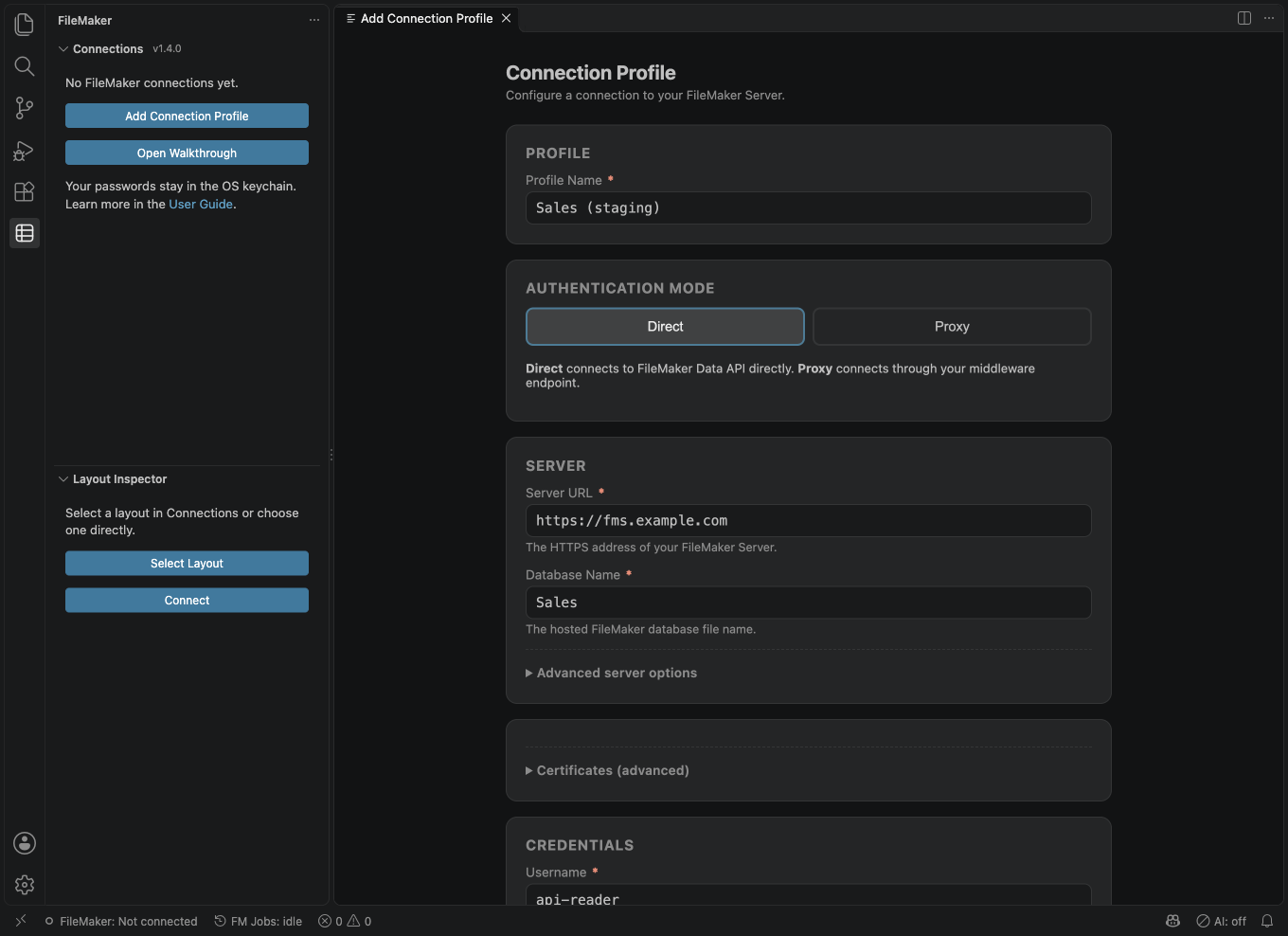
Add a profile
- Run FileMaker: Add Connection Profile (or select the plus icon in the FileMaker sidebar). The connection wizard opens in an editor tab.
- Fill in Profile: a name such as
Dev Server. - Choose Direct or Proxy:
- Direct: the extension talks straight to the FileMaker Data API. Enter the server URL (for example
https://fm.example.com), the database name (the file name without.fmp12), the account name and the password. - Proxy: your team runs a middleware service in front of FileMaker. Enter the server URL the proxy talks to, the database name, the proxy endpoint, and the proxy API key if it needs one. The extension never sees the FileMaker credentials in this mode.
- Direct: the extension talks straight to the FileMaker Data API. Enter the server URL (for example
- Leave API Base Path (
/fmi/data) and API Version (vLatest) alone unless your administrator says otherwise. They are under the advanced server options. - Select Test Connection. A badge shows the result: green for a successful test, red with the error message for a failure, yellow if you changed something since the last test.
- Select Save Profile. A notification offers Connect Now; select it to open a session.
How strict the wizard is about testing is set by filemaker.connectionWizard.requireTestBeforeSave: off, warn (the default: asks you to confirm when you save an untested profile) or block.
Where secrets go
The password, proxy API key and session token are stored in VS Code SecretStorage, which uses your operating system's keychain. They are not written to settings, profiles, saved queries, snapshots or logs. If SecretStorage is not available (for example a Linux machine without a keyring), connecting fails with an error. filemaker.secrets.fallback lets you choose a fallback in VS Code workspace storage (workspace-state) for headless setups. That fallback is obfuscated, not protected: the key is derived from the machine ID, so anyone who can read your VS Code state on this machine can recover the secrets. Use it only when there is no keyring. This setting is read from your user settings only (a workspace value is ignored). The default is vscode-only.
What the wizard asks you to confirm
- Plain
http://to a remote server. The password would travel unencrypted. You can continue, but you are warned. - An address that came from the workspace. See profile templates below.
- A changed server, proxy or user name. When you edit a saved profile and change the server address, the proxy address or the account name, the wizard does not reuse the saved password or API key. Type it again. This stops a saved password from being sent to a different server. If you only change the profile name or the database, the saved secret is kept.
- Test Connection opens a throwaway session and closes it. It never changes the saved profile's secrets. For an unchanged server and user, leave the password empty to test with the saved one.
When editing a profile, ••••••• (saved) in the password box means you can leave it empty to keep the saved password. Typing a password replaces it when you save, including any spaces you type; the saved password is never displayed. If you have not tested the current values, Save shows Test the connection first, or choose Save anyway with a Save anyway button. A workplace policy that requires a successful test still blocks saving until it passes.
Changing the host or port clears the trusted certificate in the wizard and shows a notice. Review the certificate for the new address before trusting it.
Server addresses with a user name or password inside them (https://user:pass@host) are rejected.
Certificates
Unless a profile still has the older allow-self-signed setting (see below), the extension checks the server's TLS certificate the normal way: it must be signed by an authority your computer trusts, be current, and match the name in the Server URL. Your computer's trust list is Node's built-in public list, plus (where your VS Code's Node can read it, Node 22.15 or newer) the operating system's certificate store, plus anything in the NODE_EXTRA_CA_CERTS environment variable. The operating system store is read in the background after start-up and read again by the next request once ten minutes have passed (a certificate you install later is picked up then, or after a reload); set VS Code's http.systemCertificates to false to opt out. To see which Node your VS Code uses, run FileMaker: About / Show Version and read the Extension host line (Node 22.15 or newer can read the operating system store). A certificate from a public authority needs nothing from you.
For a server whose certificate your computer does not trust there are two choices, both set in the connection wizard and stored per profile (never from a profile template or a workspace file, and only for https:// addresses):
- Trust this certificate (pinning). Select Test Connection; when it meets a certificate problem the extension reads the certificate (it sends nothing to the server first) and shows Trust this certificate for "<profile>"? with: why it was refused, the Server, Subject, Issuer, Names, Valid dates and the SHA-256 fingerprint. Only continue if you recognise the fingerprint; compare it with your administrator's or the Admin Console. If you accept, the extension trusts exactly that one certificate for this connection (host-name and issuer checks are skipped for it only) and the test runs again. The fingerprint is saved in the profile when you select Save Profile. If you decline, the red message stays with a Trust this certificate… button so you can reopen the dialog. You can also open it with Review server certificate… and remove the pin with Forget trusted certificate, both under Certificates (advanced). On an error message for a saved connection the same button appears.
- A pinned certificate that has expired (or is not yet valid) is refused, unless you accepted that explicitly in the dialog (the button then reads Trust anyway, although it is not valid).
- If the server later presents a different certificate (renewed or replaced, or something else answering), the connection fails hard with a message that the certificate is not the one you trusted, and the button reads Review and re-trust. Do that only if your administrator renewed the certificate.
- A pinned connection is made directly, never through an HTTP proxy. If a proxy applies to the server address on your computer (an environment proxy, VS Code's proxy, or a system/PAC rule), the extension refuses before sending anything: "A proxy is configured on this computer ... and a trusted (pinned) server certificate cannot be checked through a proxy". For an environment proxy, add the server's host name to
NO_PROXY(and restart VS Code so it sees the change). For a VS Code or system proxy, exclude the server in that proxy's settings, or remove the proxy setting. The review dialog notes that it connects directly. - Trusted certificates work with all four values of VS Code's http.proxySupport setting:
override(the default),fallback,onandoff. No setting change is needed. A required proxy is refused withPIN_THROUGH_PROXY, even if the profile also has a CA file. The backupfallbackadvice is reserved for untrusted pin/legacy requests left on the environment-proxy route while the host patch is active; CA-only failures keep the normal certificate advice and trust actions.
- Custom CA certificate file. Under Certificates (advanced), the absolute path to a PEM file with the certificate of the authority that signed your server's certificate (and any intermediate). It is added to the certificates your computer already trusts (Node's built-in list, plus the operating system store and
NODE_EXTRA_CA_CERTSwhere Node 22.15 or newer can read them; on an older Node with a CA file set,NODE_EXTRA_CA_CERTSis not included), so public servers keep working, and an edited or renewed file is used on the next connection. This is the right choice for a company authority whose certificate names the server. It does not help with FileMaker's default certificate (no host names), and a profile that has a pinned certificate ignores the CA file and follows the pin's direct-only rules. CA-only profiles keep the same certificate handling and environment, VS Code and system/PAC proxy routing as before, including withhttp.proxySupport: override. Use the company CA file for a TLS-inspecting corporate proxy. A wrong CA file produces the normal untrusted-chain or missing-intermediate advice, with the network code and trust actions retained; changinghttp.proxySupportis not the remedy for a wrong CA file.
What pinning does and does not give you
A pin is trust on first use of one certificate fingerprint. It does not prove who presented the certificate at the moment you first trusted it: if someone was intercepting your connection then (a man-in-the-middle), their certificate is the one that gets pinned. It does not protect you if someone else holds that certificate's private key. For that one certificate it skips the host-name, issuer and revocation checks. So compare the SHA-256 in the dialog with your administrator's (or the Admin Console's) before you trust it, and do it on a network you trust. What it does give you is detection of change: a different certificate later is a hard failure. This also holds with VS Code's default http.proxySupport setting. It is not known whether FileMaker Server's default certificate is the same on every installation; if it is, pinning it detects change only.
Profiles that had the older Allow self-signed certificate setting now go directly to the server when no environment proxy applies, preserving their agent with every http.proxySupport value, including override. That agent skips every certificate check unless the profile also has a trusted fingerprint (the fingerprint takes priority). Behind an environment proxy these profiles keep their previous proxy CONNECT tunnel: VS Code may still replace the agent and reject an untrusted certificate, in which case the error may suggest fallback. This proxy behavior is unchanged, including with http.proxySupport set to fallback, on or off: those settings do not switch off HTTPS_PROXY. A failed connection to the proxy names the proxy and points to HTTPS_PROXY and http.proxySupport; check the proxy with your network administrator, or add the server to NO_PROXY if a direct connection is allowed. The profile list shows no TLS checks next to the profile, the status bar item carries a warning marker and tooltip, the wizard shows This connection skips ALL certificate checks, and the extension offers once to convert it: Convert to pinned certificate (it shows the certificate dialog first), or in the wizard Convert to a pinned certificate… or Check certificates normally. The wizard no longer has a checkbox for it; trust the certificate by fingerprint instead, and set a CA file only in the wizard. Converting does not require a VS Code setting change; a pinned connection must go directly to the server, without a proxy.
Test Connection, step by step
Test Connection in direct mode is a ladder and tells you which step failed:
- Step 1 of 3: reaching the Data API. TLS (the certificate), the name and port, and
/productInfo, which needs no account. A failure here reads "Could not reach the Data API: ..." followed by the cause. On success the message names the server product and version. - Step 2 of 3: listing the hosted databases. "Could not list the hosted databases: ..." on failure. If sign-in later fails because the database name is wrong, the message lists the names the server hosts. (A server that answers 401 or 403 to the database list, because it filters the list until you sign in, is skipped, not treated as a failure.)
- Step 3 of 3: signing in. "Reached the server, but sign-in failed: ..." on failure.
In proxy mode the test opens a session through the proxy. A failed test shows its reason once, in the message under the badge. A test is you asking for a sign-in, so it goes ahead even while automatic sign-ins are paused.
Test my server
Choose your connection, then run FileMaker: Test My Server. The first dialog lists every check. Choose Run read-only test to start safely. This uses the saved account and password, in a separate temporary session, and leaves your normal connection alone.
The test checks the server version, signs in, tries the database list, counts layouts and scripts, and reads the fields of the first three layouts. A database list that your account cannot see is a warning, not a failed login. Choose a layout to read at most one record using Get records, without sending an empty search, and read it by its ID; the last layout you chose is remembered for that connection. Then choose a text field for a search that should find nothing. This records the server's actual answer, including whether “no records match” uses HTTP 404 or 500 with FileMaker code 401. Cancel a picker to skip that check. No record values or script results go into the report.
Optional write test. Only choose Also run the write test with a disposable test file. Pick a SCRATCH layout and an editable text field. A second dialog names that layout and asks permission to create, read, edit and delete one record. The test also tries an old modification ID to see whether the server refuses it with code 306. Required fields, automatic fields and server triggers can affect this test. Cleanup is attempted if a step fails or you cancel. If deletion fails, the report gives the record ID and layout: ask your administrator to remove that test record. If a create request times out, the server may have created a record without returning its ID; check the scratch layout before trying again.
Optional script. This is skipped by default: leave the script name blank or cancel. To run one, type its exact name and parameter (the parameter can be blank), then confirm the named script. Only use a script you understand: it may change data or have other effects. Layout, field and script names keep their spaces exactly as entered.
Writes and scripts are unavailable in Restricted Mode, when the enterprise role or policy blocks them, or when their Record Editor or Script Runner switch is off. Offline mode prevents the test. You can cancel from the progress notification; further tests stop, with cleanup and logout still attempted. Requests use your normal timeout setting. Even reads may cause server-side triggers or automatic actions, so use a test file first. Containers and batches are never tested.
Cancelling a request while signing in stops only that request; other waiting requests continue. When the extension renews a direct connection, it tries to close the previous session with a short timeout. A failed close does not fail your request; the old session then expires on the server.
The Get records step needs a direct connection; the existing proxy protocol has no action to list records without a search.
The test signs out and tries the old token once, without signing back in, to check that it is refused. A proxy owns its own sessions, so that last check is skipped for proxy connections. The report opens as an unsaved Markdown document. PASS means that step answered as expected; WARN means skipped or not confirmed; FAIL means it needs attention. It shows elapsed time, HTTP status, FileMaker code and message, observed facts and plain next steps. A TLS protocol is only shown when it was observed; plain HTTP has no TLS. Blank status or code means none was observed, never an assumed success.
Choose Copy report or Copy report with server address hidden after it opens. Passwords, tokens, record values, script parameters and script results are excluded, and the report is scrubbed again before copying. Review it before sharing: layout and field names and server details can still identify your organization. Real server findings describe only the server you tested; mock-server results do not verify other servers.
Profile templates for a team
A repository can include .filemaker/profile-template.json to pre-fill the wizard for everyone who clones it:
{
  "name": "Team Development",
  "authMode": "direct",
  "serverUrl": "https://fm-dev.example.com",
  "database": "TeamApp",
  "apiBasePath": "/fmi/data",
  "apiVersionPath": "vLatest",
  "username": "developer",
  "locked": true
}
For a proxy profile use "authMode": "proxy" and "proxyEndpoint" instead of "username". A template must not contain secrets: a password, proxyApiKey, token or any unsupported field makes the extension ignore the whole template and show a warning. Everyone enters their own password in the wizard.
"locked": true makes the database name, API base path and API version read-only in the wizard. The server address and proxy endpoint are never locked, so you can always see and change where your credentials go.
Why a repository's template is not trusted: it names the server your credentials will be sent to, and a cloned repository could name a server owned by someone else. So:
- In an untrusted workspace the template is ignored.
- In a trusted workspace the wizard names the address on a banner, and asks you to confirm before it saves or tests credentials against an address that came from the template. It does not ask if you already have a profile for that server.
Connect, disconnect and switch
- FileMaker: Connect opens a session. If you have several profiles, you choose one. A transient failure (network error, server error) is retried with growing delays (
filemaker.connect.*settings). - FileMaker: Disconnect closes the session.
- The status bar item
FileMaker: <profile>shows the active profile. Select it for FileMaker: Show Connection Menu (switch profile, disconnect). - Data commands use the active profile, or your only profile, without asking. With no profile, they offer to add one.
- FileMaker: Edit Connection Profile and FileMaker: Remove Connection Profile (also on the profile's right-click menu) change or delete a profile. Removing a profile also deletes its saved queries and secrets.
Press Escape in any picker or input box to cancel the command.
Sessions
Renewing a connection lets the next request proceed as soon as the new session is ready. Closing the previous session happens in the background.
FileMaker Data API tokens expire after about 15 minutes of inactivity. The extension renews the token about 30 seconds early (filemaker.session.refreshLeadSeconds) and treats a token as expired after 14 minutes (filemaker.session.maxAgeMinutes). If a request is still rejected as unauthorized, it signs in again once and retries, and reports an error only if that fails too.
Failed sign-ins pause. If FileMaker rejects the saved account or password (error 210, 211, 212, 213, 214 or 1703), the extension stops signing in on its own for that connection, so that repeated failures cannot lock the account. Every action then reports "Sign-in is paused" with the error code. (Error 214, too many login attempts, can be a temporary lockout: wait before trying again.) To resume, edit the connection and save a corrected account or password, or run FileMaker: Connect or Test Connection. If the server has no free Data API sessions (error 956), automatic sign-ins wait 30 seconds, then 60, and so on up to 5 minutes.
Status bar. The FileMaker: <profile> item shows the real state of the last request: it only says the profile is active until a request has been made ("the connection has not been checked"), then a spinning icon while connecting, a plug when connected, sign-in failed, certificate problem or unreachable. A profile that still skips all certificate checks (the older setting) carries a warning marker and tooltip there. unreachable appears for a connection that could not be made, but also for a plain 404, a 5xx without a FileMaker error code, a gateway error (502, 503, 504) and a reply that is not Data API JSON; a cancelled request leaves the last state.
Not the Data API. If a web page, firewall block page, empty reply or cut-off reply comes back instead of FileMaker's JSON, you get "The server did not return Data API JSON" with the HTTP status and content type. Redirects are not followed (the Data API never redirects); the message says where the server pointed.
The FileMaker sidebar
The FileMaker icon in the activity bar opens two views.
Connections shows:
Connections
  Environment Sets          (only when you have created one)
  Jobs                      (while batch jobs exist)
  <Profile name>
    <Layout>
      Fields
      Value Lists
      Schema Snapshots
    Saved Queries
Right-click a layout for the common actions: open the Query Builder, open or edit a record, run a script, capture or diff a schema snapshot, generate types, batch export, batch update, upload to a container. Right-click a profile to connect, edit, remove or generate types for all layouts.
Layout Inspector shows the fields, portals, value lists and field validation rules of one layout. Select a layout in Connections, or run FileMaker: Select Layout for Inspector.
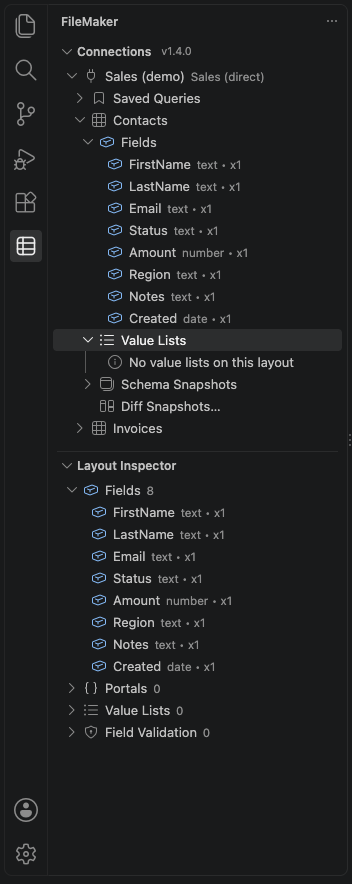
FileMaker: Refresh Connections reloads the tree. FileMaker: Refresh Schema Cache drops the cached layout metadata (kept for filemaker.schema.cacheTtlSeconds, default 300 seconds).
Names are used exactly
Layout, script and field names are sent to FileMaker exactly as the server lists them or as you type them. A leading or trailing space is part of the name, so the layouts Sales and Sales (with a space in front) are two layouts, the sidebar lists both, and choosing one never turns into the other. This holds in the Query Builder (find and sort fields), Script Runner, container upload, global fields, saved queries, type generation, Layout Mode and the AI tool that runs scripts. For scripts and layouts, only an empty name or one that is all spaces is refused. A name that is just . or .. is refused for a script or layout, because a web address would resolve it away and send a different request. Generated file names and TypeScript identifiers for such names stay different from each other (see file names).
If a name seems not to work, check for a space at either end: copy it from the sidebar rather than typing it.
Some commands are hidden from the Command Palette until you need them:
- Most data commands appear after you have at least one profile.
- Environment Set commands appear only in enterprise mode.
- Cancel Job and Show Jobs are always available in the Command Palette. Request history, the diagnostics dashboard, circuit breaker and plugin commands appear only when
filemaker.advanced.powerUserModeis on.
Find records: Query Builder
- Run FileMaker: Open Query Builder, or right-click a layout and choose it.
- Pick the Profile and the Layout.
- On the Form tab, build the find: choose a field (field names autocomplete), a condition, and a value. Conditions include matches, equals (whole field), begins with, contains phrase, greater than, at least, less than, at most, between, is empty and is not empty.
- Select Add request (OR) for an alternative set of criteria. Tick Omit on a request to exclude its matches. Use Add sort field to sort.
- Select Run (or press
Ctrl+Enter/Cmd+Enter).
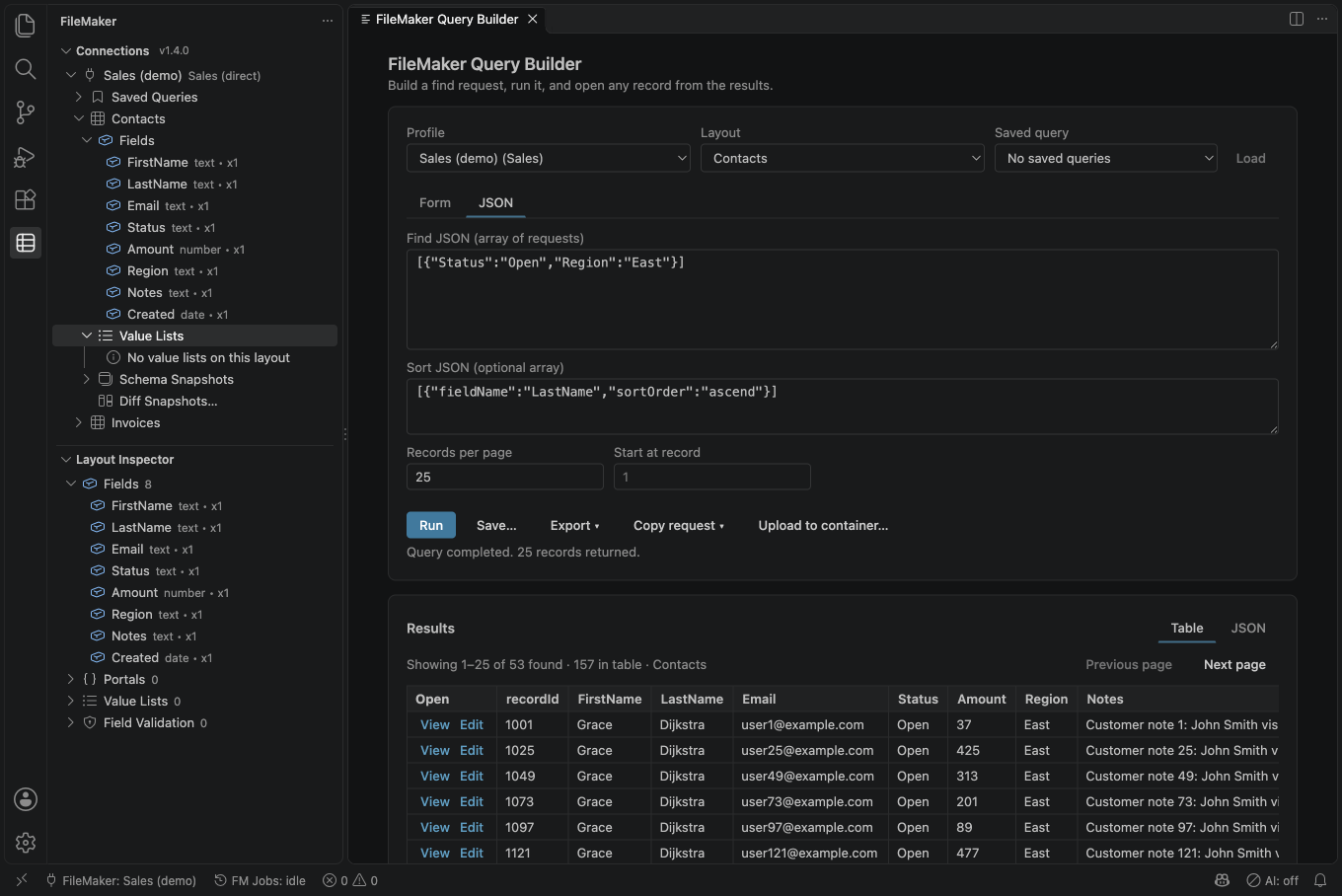
The JSON tab shows the same request as a Data API find body, and you can edit it directly. For example, [{ "Status": "Active", "City": "Portland" }] means Active AND Portland; [{ "City": "Portland" }, { "City": "Seattle" }] means Portland OR Seattle; a request with "omit": "true" excludes its matches.
Results:
- The table shows
Showing 1-100 of N found. Use Previous page and Next page, and set Records per page and Start at record (the first record is 1). - Select a column heading to sort the current page. Double-click a row, or use View or Edit, to open that record.
- Under the Export disclosure: Copy results as table copies text that pastes into a spreadsheet, and Save results as CSV…, Save results as JSON… and Open results in editor export the results on screen. Both Save results as CSV… and Copy results as table put an apostrophe in front of text that a spreadsheet would run as a formula (see apostrophes in CSV files);
filemaker.export.neutralizeFormulasturns that off. For large exports use batch export. - Under the Copy request disclosure: Copy as curl, Copy as fetch(), Copy as .http (REST Client), Copy as Postman collection, Copy as TypeScript and Save as .http file… copy the find you have entered. The session token, password and API key are never copied; the Authorization header carries a variable to fill in once you tick Include auth header (its starting value is
filemaker.snippets.includeAuthByDefault). See Copy a request as code. - A find that matches nothing shows an empty result, not an error.
Save… stores the query under the profile in the sidebar (Saved Queries). Saved queries live in the workspace by default; set filemaker.savedQueries.scope to global to keep them in your user data. Run one from its right-click menu or FileMaker: Run Saved Query. FileMaker: Export Saved Queries (JSON) and FileMaker: Import Saved Queries (JSON) share them with a team. A file that is not valid JSON shows That file is not valid JSON. A JSON file that does not contain saved queries shows a different error. Neither changes your saved queries. The panel keeps a short Request history, the last filemaker.history.maxEntries requests (default 10).
Empty searches. Enter at least one field value to search. An empty form, [], or [{}] does not send a search. The message offers a List records instead button. Choose it to list records on the current layout using the current limit, starting record and sort, then use Previous page and Next page as usual. Nothing is listed until you choose the button. Listing needs a direct connection; a proxy connection explains that you must enter a search value instead. Saved queries, batch exports, AI searches, generated clients and copied code still refuse empty searches. To search for an empty field, choose is empty (the = search value). Get records lists records without searching; Test My Server uses it to read one record. FM Web’s Find All also uses Get records through the local preview bridge.
For a quick check without the panel, FileMaker: Run Find (JSON) asks for a layout and a find body.
View, edit, create and delete records
What a record ID is
A record ID is FileMaker's internal record number for a row on a layout (what Get ( RecordID ) returns in FileMaker). It is not one of your key fields and it is not the order of the records on screen. The Query Builder results table shows it in the first column (recordId). You rarely need to type one: run a find in the Query Builder and use View or Edit on the row. The commands that ask for a record ID are for when you already have it from a result, a log or a script.
View a record
Run FileMaker: Get Record by ID or FileMaker: Open Record Viewer, choose a profile and layout, and enter the record ID (or use View on a row in the Query Builder). The viewer shows fields in the layout’s order, followed by any extra fields returned by the server. Repeating fields stay together in repetition order. It uses the same kinds of boxes as the Record Editor, all read-only. Image container links show a preview; other container links can be opened. Copy sits beside each field name and appears when you point at the field or move keyboard focus into it, leaving the whole value box available for numbers and dates. Related rows appear below. Export Record JSON saves the record.
If Load more in the Record Viewer fails, the error is shown and the button becomes available to try again. Portal counts supplied only for the first result are not applied to other records in a search or CSV export.
Edit a record
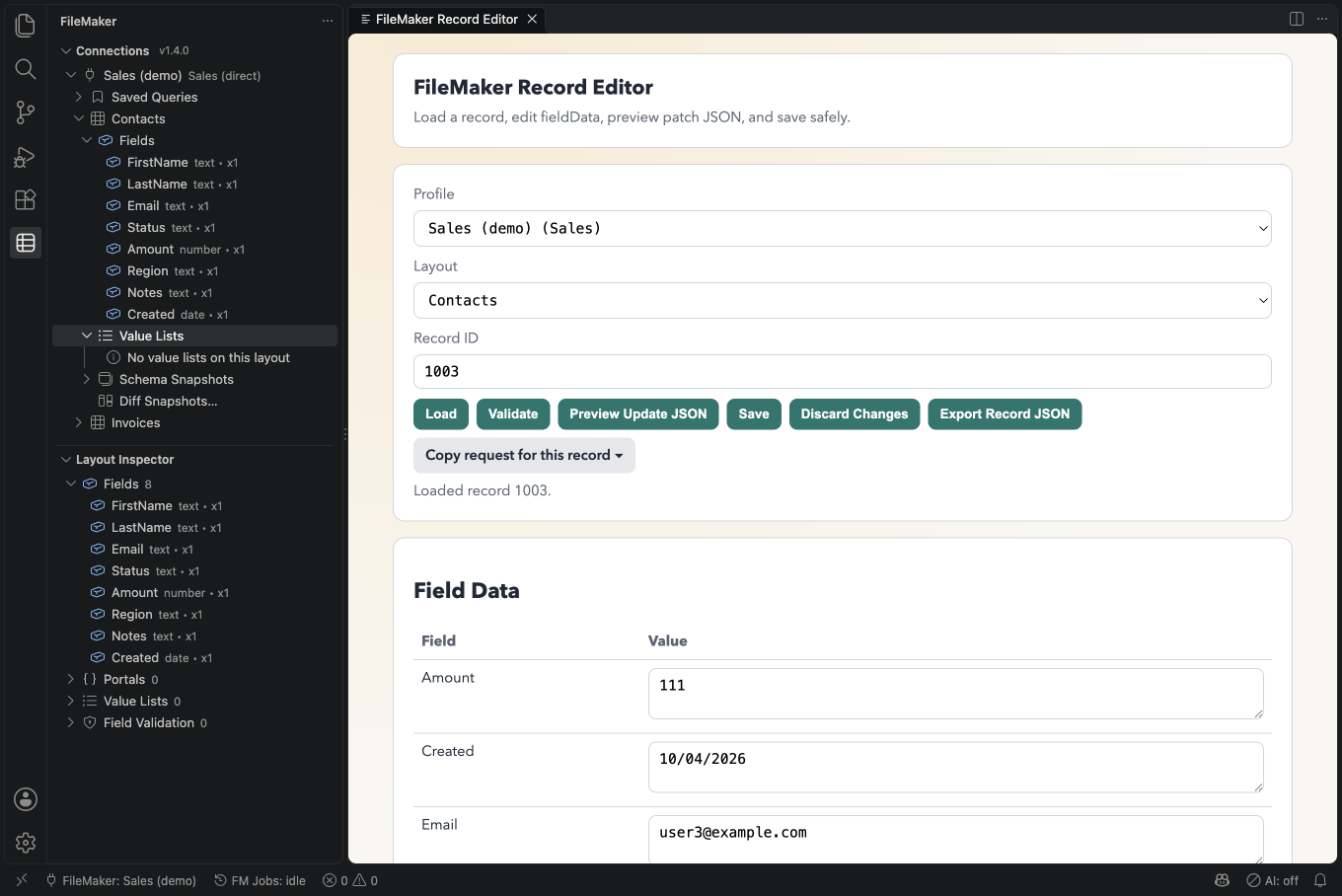
- Run FileMaker: Open Record Editor or FileMaker: Edit Record by ID, or select Edit in the Query Builder.
- Choose a profile and layout and enter the record ID, or skip this and use Edit on a row in the Query Builder (the editor then opens with the record loaded). In the editor, Load fetches the record.
- Change fields. Validate checks the values. Preview Update JSON shows exactly what will be sent.
- Select Save. A dialog lists the fields that will change. Confirm with Save.
The Record Editor shows fields in the same order as your layout, with the right kind of box for each field. Repeating fields stay together in repetition order. Extra fields returned by the server come last, in the server’s order. Hidden fields stay hidden. If field details are unavailable, fields stay in the server’s order and use text boxes.
Short text, numbers, dates and times use single-line boxes. Long text and text containing line breaks use taller boxes. Pop-up and drop-down lists use a menu; radio buttons and checkboxes show the layout’s choices. A saved value missing from a menu is still offered as “(current value)”; leaving it alone keeps it exactly as it was. Calculation and summary fields are read-only. Containers show a link or image; use Upload to Container to replace a file. Dates keep the server’s format.
Only changed fields are sent. Discard Changes reverts the form.
If someone else changed the record: the editor sends the version of the record you loaded. If the record changed on the server since then, FileMaker refuses the edit (error 306) and nothing is written. The editor then shows which fields changed since you loaded the record, which of them you also edited, and keeps your edits in the form. Select Reload record (discard my edits) to load the current version, then make your change again. Batch updates also use the modification ID kept in your export, unless you explicitly choose to overwrite newer changes.
If the layout runs a script on save and that script reports an error, the error is shown next to the success message (the record was saved). The same applies to create and delete. A find (Run Find (JSON) and the Query Builder) and a container upload also show a script error as a warning ("The find worked, but ...", "The upload worked, but ..."); getting a single record does not display script errors.
If a save works but the editor cannot re-read the record afterwards, it says so and asks you to select Load before editing again.
Create a record
Run FileMaker: Create Record (or the plus icon on a layout). The Record Editor opens in create mode with the layout's field list. Fill in the fields you want, select Create Record, and confirm the dialog ("Create a new record in layout ..."). The editor then shows the new record's ID. If the first field list cannot be loaded, the editor shows the error and has no fields to fill in. Select another layout, then select this layout again to request its fields again. If a lookup fails after switching layouts, the previous fields can still be visible. Wait for the selected layout’s fields before creating. If Create Record reports a field-loading error, nothing was created; your entries remain and you can try again.
Delete a record
Run FileMaker: Delete Record, choose a profile and layout, and enter the record ID. Because a mistyped ID deletes the wrong record, look the ID up first: run a find in the Query Builder and read the recordId of the row you mean. A dialog then asks you to confirm with Delete, naming the ID and the layout. Deleting cannot be undone.
Editing, creating, deleting and uploading all need a trusted workspace (checked each time; an open editor refuses changes if trust is lost), are blocked in offline mode and for the enterprise viewer role, and respect filemaker.features.recordEdit.enabled. Deleting also needs the general write permission (writeOperations) in addition to record editing.
Upload to a container field
- Run FileMaker: Upload to Container, or select Upload to container… in the Query Builder.
- Choose a profile and layout, then enter the record ID and the container field name.
- Pick the file.
The default size limit is 100 MB (filemaker.containerUploadMaxBytes). Uploading needs a trusted workspace.
Text with a NUL character and repeated field names
A NUL character (U+0000) is invisible and can arrive in pasted text. On the FileMaker server we tested, FileMaker kept only the text before this character and dropped the rest. This was observed with FileMaker Data API Engine on 2026-10-21.
Before saving or creating a record, the editor names the affected fields and asks you to choose Remove the character and continue or Cancel. Removing it keeps all the text on both sides and leaves other characters alone. If removal leaves a field empty, including all of its repeating values, the warning names it and tells you it will be sent as an empty value. You still confirm the save or creation afterwards, unless cleaned edit values match the original record; then the editor explains that nothing needs to be saved. Batch update/import refuses the whole affected row, reports its record ID and field names, and continues with the other rows. The dry-run preview document lists every flagged data row number (starting at 1, excluding a CSV header), record ID, and affected field names, including rows outside the sample. Remove the character in the source file before trying again. AI write tools and the FM Web preview bridge refuse the value and explain why. The shared client also refuses NUL values from other callers. Zero-width space and BOM alone were not tested on the real server; the extension does not remove them.
Some layouts list the same field more than once. The editor shows one value per name and a note naming repeated fields. Query Builder offers one choice per field name. The AI layout description also lists each exact name once and includes a note about repeats. Generated types have one property per name, copied requests keep the exact names, and Layout Inspector shows each exact name once, with a note naming repeated fields. Test My Server uses the same field count.
Known gap: creating related records. FileMaker accepts related records when creating a record, but this extension's Create Record sends only the main record's fields. It cannot yet create portal rows. A real-server check created a related record in Phone Numbers, with Phone Numbers::Number and Phone Numbers::Type; that support has not been added to the extension.
When the layout field list is available, calculation and summary fields are read-only in the Record Editor with a note explaining why. Container fields are read-only with Use Upload to container; use the separate upload action. Save and Create Record leave these fields out, including repetitions such as Calc(1) and Calc(2). The extension checks this again before sending a change. Global fields remain editable and show Session-wide because they apply throughout the connection session. Read-only fields keep the same standard field presentation. If the field list is unavailable, the editor warns that it cannot identify read-only fields; check the field types before saving. FileMaker still decides which fields your account can change.
Batch export and batch update
Batch work runs as a job with a progress bar. Jobs appear under Jobs in the sidebar. Progress shows processed rows, succeeded rows and failed rows separately. A finished job with a failed row says completed with 1 failed row. Open the job to view details or choose Copy failures to copy record IDs, reasons and FileMaker codes.
Use FileMaker: Cancel Job, the Cancel action on a running job in the sidebar, or the jobs menu opened from the status bar. Cancellation stops new requests. Requests already sent finish, and their results and failed rows are kept. Cancelling does not undo successful updates.
After you cancel an update, its status stays cancelling while edits already sent finish. No further edit or retry starts. It then shows Cancelled after N of M; N counts records attempted, including failures. Open FileMaker: Show Jobs and choose the job to see updatedIds, failures (record IDs, reasons and FileMaker codes when supplied), and notAttemptedIds. The full lists stay available for this session. After a restart, recent jobs keep all counts and the first 1,000 entries in each list of changed, failed and untouched records. A shortened list is marked in the details; copy any full list you need before restarting. Cancelling does not undo changes.
Export
- Run FileMaker: Batch Export (Find) (or use the layout's right-click menu).
- Enter the find JSON array and an optional sort array.
- Choose where to save. The file extension sets the format:
.jsonl(one JSON record per line) or.csv.
Large results are fetched page by page. The export stops at filemaker.batch.maxRecords records (default 10,000; the hard limit is 250,000). With filemaker.performance.mode set to high-scale, exports are always written as JSONL.
Safe export files. The extension writes a temporary file in the same folder and replaces your chosen file only when the export finishes successfully. A failed or cancelled export leaves the existing file untouched and removes the temporary file; no partial file is kept. A cancelled export says Cancelled; no file was written. A successful CSV export with no matches still has its column headings. New export files use owner-only permissions on macOS and Linux; replacements keep the existing file's permissions. A destination symlink is replaced without changing the file it points to. CSV includes repeating fields as Name(1), Name(2), etc., followed by any extra fields found in the first page. When field information is unavailable, CSV uses the columns found in the first 100 records. Fields appearing after the column list is fixed are omitted; the job result lists their names and the final warning reports how many values were not exported.
CSV for Excel. Choose Standard CSV for the usual UTF-8 file, or Excel-compatible CSV (UTF-8 BOM) so Excel on Windows recognizes accents. Standard CSV is the default. This choice is available for batch CSV exports and Query Builder's Save results as CSV….
Related rows in exports. FileMaker often returns only the first 50 rows of each portal. CSV adds a note column only when at least one record has missing related rows; JSONL has an exportNote when rows are missing, for example Orders: showing 50 of 170. These exports do not fetch the missing related rows. In the Record Viewer, each portal shows how many rows were returned out of the total. Choose Load more to request another 50, until all rows are shown. Portal names keep their spaces exactly. Loading more is available on direct connections; a proxy connection shows a message explaining this limit.
Apostrophes in CSV files. A spreadsheet runs a cell that starts with =, +, - or @ as a formula, and database text can start that way. The export therefore puts an apostrophe in front of such text, so =SUM(A1) is saved as '=SUM(A1). The same applies to text that starts with a tab or a carriage return. Plain numbers (-5), signed numbers and phone numbers such as +1 (555) 123-4567 are left alone. If another program reads the CSV, strip the leading apostrophe there. The same applies to Save results as CSV… and Copy results as table in the Query Builder.
Editing and re-importing a CSV export. The first two CSV columns identify the record: recordId and modId. If a layout has a field with either name (including different capitals), the record columns use __recordId and __modId instead. Extra underscores are used if those names are also fields. Keep these two columns together at the start of the file. The layout fields follow, including fields missing from the first record. Duplicate column names are refused because the record or field to change would be unclear. An older CSV using plain record columns on a layout with clashing field names is also refused when the field list can be read; export it again to get the reserved columns. Only when related rows are missing, a final column, __portalNote (export information), explains what is incomplete. It is not a field; import skips it. Keep that note last or remove it before importing.
Text fields keep exactly what you typed, including 10.50, null, true, brackets and spaces. Number fields receive numbers only for valid decimal numbers within the safe range (up to 9,007,199,254,740,991 in either direction). Other number entries are kept as text, with a warning for each affected row in the job log, so large numbers are not rounded. Dates and times stay as written. Field types are checked once when the update job starts; if they cannot be read, values stay as text and the job log warns you. Empty CSV cells are still skipped: they leave the field unchanged, so a CSV cannot clear a field. A space in a text cell is kept as a space. The Record Editor also uses the field's type, keeping number-looking text as text.
Calculation, summary and container columns are skipped when the layout field list can be read, including repeating columns such as Calc(1) and Calc(2). The dry run and job log name each skipped column before updates; a row with no editable values is skipped without a write. Remove related (Table::Field) columns before importing, keeping only fields you want to change. If the same record ID appears more than once, only its first row with editable values is used; later rows with editable values are listed as duplicate rows and skipped, with a warning. Rows containing only skipped columns do not prevent a later edit. Spaces around record and modification IDs are ignored in both CSV and JSON; field names and values are kept exactly. JSONL files cannot be imported; batch update accepts comma-separated CSV or a JSON array of updates. A semicolon-separated file or JSONL file gets a message asking for comma-separated CSV instead.
Turning the apostrophe off. If you need the raw text (for example a program that does not understand the apostrophe), set filemaker.export.neutralizeFormulas to false in your user settings. It applies to CSV exports and Copy results as table; a workspace cannot change it. JSON Lines exports never had the apostrophe.
Update
Rows containing a NUL character are refused before sending any fields from that row; see Text with a NUL character and repeated field names.
- Run FileMaker: Batch Update from CSV/JSON (or the layout's right-click menu).
- Choose a
.csvor.jsonfile.- CSV: a header row with a
recordIdcolumn and one column per field. Empty cells are skipped (a CSV cannot clear a field). - JSON: an array of
{ "recordId": "123", "modId": "7", "fieldData": { "Field": "value" } }entries (recordIdandmodIdare strings). KeepmodIdfrom the export when available.
- CSV: a header row with a
- Choose Dry-run only (recommended) or Execute updates now. A dry run shows a sample, how many rows have
modId, how many will be checked for newer changes, and calculation, summary and container columns that will be skipped. The sample and NUL warnings leave out skipped columns. The preview opens after the field check without switching focus; if it cannot open, the result remains in Jobs. It sends no updates. Executing asks for confirmation first.
Protect newer changes. Keep the exported modId column (or reserved __modId) unchanged. Choose Check for newer changes (recommended) before running. FileMaker checks each row's version; if someone edited that record after the export, the row fails with code 306 and “Changed since the export (someone edited this record). Not updated.” It is not retried, and other rows continue. Jobs and Copy failures include these rows and their code. If a reply is lost and a retry receives 306, the extension reads the record again. If all values being written already match, it counts the row as successful. This comparison allows different number formats only for fields listed as number fields. Text, dates and timestamps must match exactly, including leading zeros and trailing spaces; only line endings may differ. If the field type is unknown, the same exact comparison applies. It does not change what you send or guess between different date formats. If the values differ, the record cannot be read, or you cancel before the check starts, it says Could not confirm: the first attempt may have succeeded. Check that record before trying again; this is not counted as a record changed by someone else. The final job summary says how many rows were skipped because the records changed after the export. To replace newer values deliberately, choose Overwrite even if changed; this sends no modification ID.
If the file has no modification IDs, a warning asks Continue or Cancel before any update. Continuing cannot detect newer changes. In a file with some missing IDs, the choice lists how many rows cannot be checked. A dry run reports these counts without asking to write anything.
A record your account cannot change because of a record-level access rule (error 200) fails that record only, with its reason in the failure list, and the job carries on. The job stops once, with FileMaker's reason and the number of records not attempted, only for errors that mean the account cannot do updates at all (9 insufficient privileges, 205 no privilege to create records, 207 no privilege to change the schema, or rejected credentials). Batch update does not retry FileMaker's own errors; it retries only connection and gateway problems, a locked record (301) and 429 or 503 answers, waiting for the server's Retry-After.
Updates run with filemaker.batch.concurrency requests at a time (default 4, maximum 10). There is no undo. The modification ID check protects newer edits when their exported IDs are kept. Keep an export from before the update for reference; restoring old values is another update, with the same checks and field limits.
Batch update is blocked in offline mode, for the viewer role, and when filemaker.features.batch.enabled is off or the workspace is untrusted.
While a query, script, record load, save or creation is running, its button is disabled. Repeated clicks do not start extra requests. A failed query or script clears the old results and summary so they cannot be mistaken for the latest answer.
An omit request with a criterion can be used on its own. Verified on a real server (2026-10-21): {"query":[{"Last Name":"==Smith","omit":"true"}]} returned all other records. An empty find is rejected with code 400; use Get records to list records without a search.
Run scripts
- Run FileMaker: Open Script Runner (or use a layout's right-click menu).
- Choose a profile and a layout. FileMaker runs scripts in the context of a layout.
- Type the script name exactly as it appears in FileMaker. Add a record ID and a parameter if the script needs them. Build Parameter helps you assemble a JSON parameter.
- Select Run Script. The result appears below. Under Copy request the same formats as in the Query Builder copy the request without running it (see Copy a request as code).
What is sent. The script runs with the request the Claris Data API Guide documents for it: a GET of .../layouts/<layout>/script/<script>?script.param=<parameter>. It is one request and it reads no record. The script name, layout name and parameter are percent-encoded exactly (a space is %20, never +; accented letters, |, & and / arrive as typed). The answer carries the script's error number and, if the script exits with a result, that result; if a record or find was part of the request, its data is not shown.
Parameter length. The extension limits the complete percent-encoded web address to 2,000 characters, including the server address, layout, script name and parameter. Without a record ID, a longer parameter goes in a find body: the extension uses the first normal stored text field in the layout metadata, skipping global, summary and calculation fields, keeps its name exactly, searches for *, and limits the response to one record. An empty search cannot carry the parameter: FileMaker rejects it. Because * matches only non-empty values, a search with no matches is followed by a separate read of at most one record, without a script, to check whether the layout is empty. If records exist but that field is empty, or the layout has no suitable stored text field, the extension falls back to Get records limited to one record only when its complete encoded URL fits the same 2,000-character limit. Otherwise it says: "This parameter is too long to send. Shorten it or run the script from a layout with a text field". With a record ID, the script must use that record's URL; shorten a parameter that exceeds the limit, or clear the record ID and use a layout with a text field.
Verified on a real server (2026-10-21). A POST /layouts/{layout}/_find with {"query":[{"<text field>":"*"}],"limit":1,"script":"<name>","script.param":"<3000 characters>"} ran the script: HTTP 200 and scriptError: "0". A find that matches no records returns code 401 and does not run the attached script; its response has no scriptError. After checking that the layout really has no visible records, the runner reports: "The script did not run because this layout has no records. Add a record or use a layout that has records." A GET /layouts/{layout}/records?_limit=1&script=<name>&script.param=<1500 characters> also worked. Both attached forms read records; the runner shows only the script's answer. An answer without scriptError is never treated as confirmed execution. If an older server refuses the script endpoint, a short call uses the Get records form too.
With a record ID. The script is attached to a request for that record (?script=<name>&script.param=<parameter>), because the script endpoint cannot take a record in context.
Older servers. If the server answers the script endpoint with 405, 501 or a FileMaker 404, the extension uses the attach-to-another-request form instead and, if that is refused too, says "Script runner is not supported on this server/profile." A bare 404 with no FileMaker error code means a wrong address or a Data API that is turned off, not unsupported scripts.
Script and layout names are used exactly as typed (see Names are used exactly); a name that is only . or .. is refused before anything is sent.
The Script Runner does not ask for confirmation, so check the script name before you run it. Running scripts is blocked in offline mode, for the viewer role, and when filemaker.features.scriptRunner.enabled is off. A workspace setting can only switch this off, never on.
Copy a request as code
Any request the extension sends can be copied as text, to try it in a terminal, put it in a repository, share it with a colleague or move it to Postman. Nothing is sent when you copy.
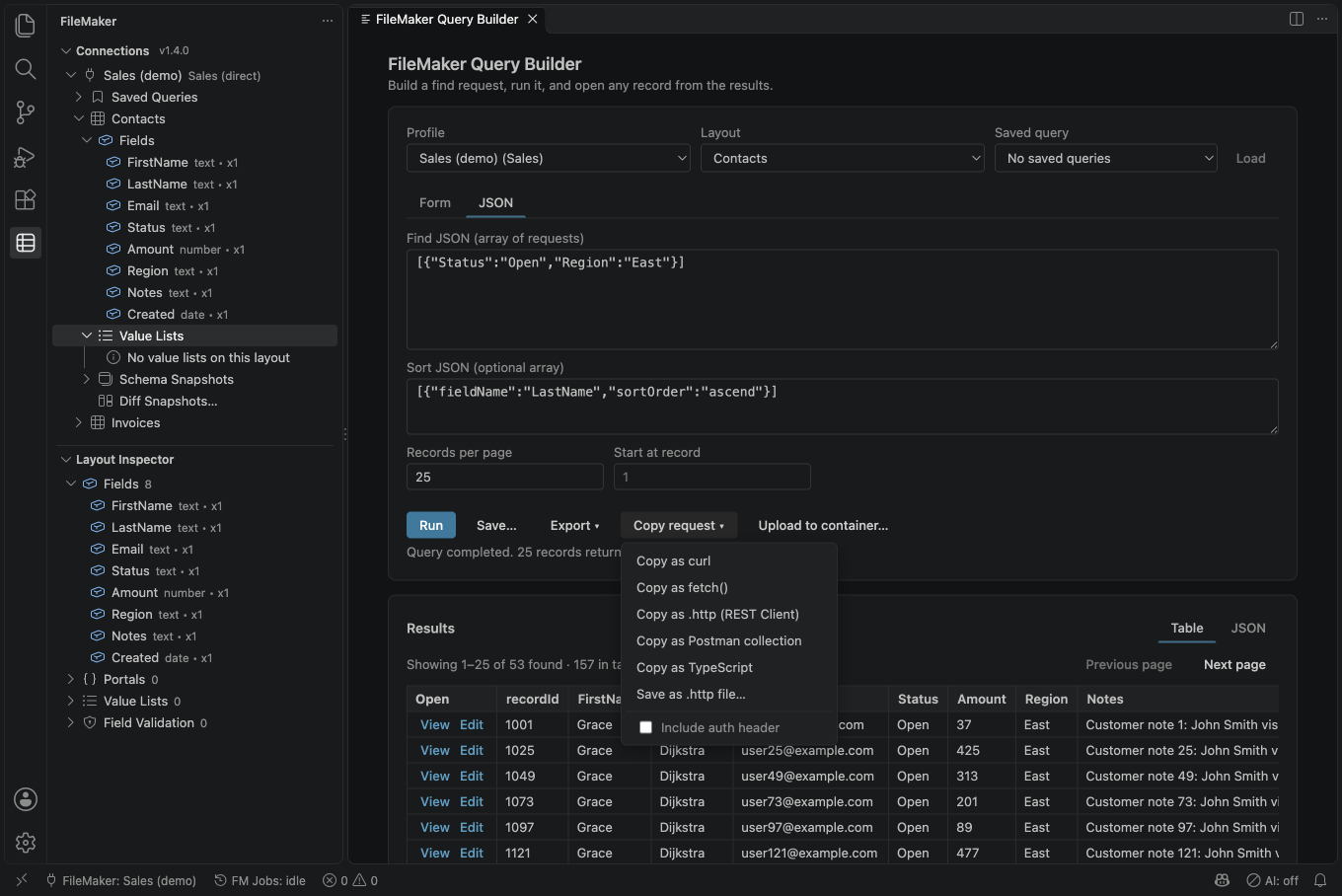
Where. Query Builder and Script Runner: Copy request (next to Export). Record Viewer and Record Editor: Copy request for this record (choose Get, Edit or Delete, and a format). Command Palette: FileMaker: Copy Request as Code… asks for the request (log in, find, get, create, edit, delete, run a script, list layouts, list scripts, layout metadata, container upload), then the layout and details it needs, then the format, for the active connection.
Formats.
| Format | What you get |
|---|---|
| curl | One curl command for a POSIX shell (sh, bash, zsh). Values are quoted so that nothing in a name can run as a command. |
| fetch() | A fetch call for Node 18 or later (top-level await) or a browser. |
| .http (REST Client) | A .http file for VS Code's REST Client (and other editors that read the .http convention) with an @host variable (and @token when Include auth header is ticked), one request after a ### line. |
| Postman collection | A Postman v2.1 collection (JSON) with one request and the variable baseUrl (and token when Include auth header is ticked). Import it with Import in Postman. |
| TypeScript | A small typed fetch wrapper and the call, with the response typed. It stands alone: the client from Generate TypeScript Client needs generated types per layout and has no calls for sessions, scripts, modId or containers, so it is not used here. |
Save as .http file… opens the request in a new unsaved editor. Use File > Save As to put it where you want; the extension never writes a request into your workspace by itself.
What is not included, ever. The password, the session token and the API key. A request that needs them shows a placeholder:
| Format | Authorization header | Login (account name and password) |
|---|---|---|
| curl | Bearer <REDACTED>, or with Include auth header Bearer $FM_TOKEN |
-u "$FM_USERNAME:$FM_PASSWORD" |
| fetch(), TypeScript | Bearer <REDACTED>, or process.env.FM_TOKEN |
process.env.FM_USERNAME and FM_PASSWORD |
| .http | Bearer <REDACTED>, or Bearer {{token}} |
{{username}} and {{password}} |
| Postman | Bearer <REDACTED>, or Bearer {{token}} |
the collection variables username and password (empty) |
Include auth header (and the setting filemaker.snippets.includeAuthByDefault) only changes the header from <REDACTED> to a variable you fill in: set FM_TOKEN in your shell, or @token in the .http file, to the token from the Log in request (its response.token). The extension does not offer to copy a live token. A proxy connection copies one POST to the proxy with Bearer <REDACTED> or $FM_PROXY_API_KEY.
What is included. The server address of the connection (the host, port and path; any account, query string or fragment typed into the address is dropped), the database, the layout and record in the address, and the find criteria, field values or script parameter you entered. Layout, field and script names are percent-encoded in the address exactly as the extension does it (A/B becomes A%2FB, 100% becomes 100%25). Text is escaped for the format, so a name with quotes, new lines, $(...), a backtick or </script> cannot change the command or the file.
Credential-looking text is replaced. The same redaction as the logs is applied to the names and values you copy: text such as Bearer abc…, password=…, or a field called token or password is shown as ***, and the copied request says so in a comment. Free text with no recognisable shape (a bare secret typed into a field value) cannot be recognised; check what you share.
Details worth knowing.
- Run a script is copied in the form the Claris Data API Guide documents: a
GETof.../layouts/<layout>/script/<script>?script.param=<text>. With a record in context the script is attached to aGETof that record (?script=<name>&script.param=<text>). A parameter too long for an address (more than about 2000 characters with the server and script name) is refused; shorten it before copying. - Edit carries
"modId": "<modId>"({{modId}}in.httpand Postman). Put in the modId from the record you read: FileMaker refuses the edit with error 306 if the record changed since. The Record Editor copies the fields you changed in the form; without changes (and in the Record Viewer) it shows one field to fill in. - Delete really deletes when sent. The copied text says so.
- Container upload is a multipart request with the file at
./file-to-upload: change the path. Add the modId to the address for a checked upload. - A
curlcommand that has a comment line first (login, edit, upload) works in a script and in bash; some shells, such as an interactive zsh, print a harmless error for the#line when you paste it into the terminal. - Copying works in an untrusted workspace (it only builds text).
Examples. A find, copied as .http with Include auth header ticked:
@host = https://fm.example.com
@token = <session token>

### Find records in layout "Contacts"
POST {{host}}/fmi/data/vLatest/databases/Sales/layouts/Contacts/_find
Content-Type: application/json
Authorization: Bearer {{token}}

{
  "query": [
    {
      "City": "Portland"
    }
  ],
  "limit": 25
}
The same find as curl (set FM_TOKEN first):
curl -X POST 'https://fm.example.com/fmi/data/vLatest/databases/Sales/layouts/Contacts/_find' -H 'Content-Type: application/json' -H "Authorization: Bearer $FM_TOKEN" --data-raw '{"query":[{"City":"Portland"}],"limit":25}'
Schema snapshots and diffs
A snapshot records a layout's fields and metadata at a moment in time, so you can see what changed.
- Right-click a layout and choose Capture Schema Snapshot (or run FileMaker: Capture Schema Snapshot).
- Later, choose Diff Against Latest Snapshot on the layout, or FileMaker: Diff Schema Snapshots to compare any two.
- The Schema Diff panel opens with Show only changes ticked and shows added, removed and changed fields side by side or as a tree. Clear the box to include unchanged fields. Export Diff JSON saves it.
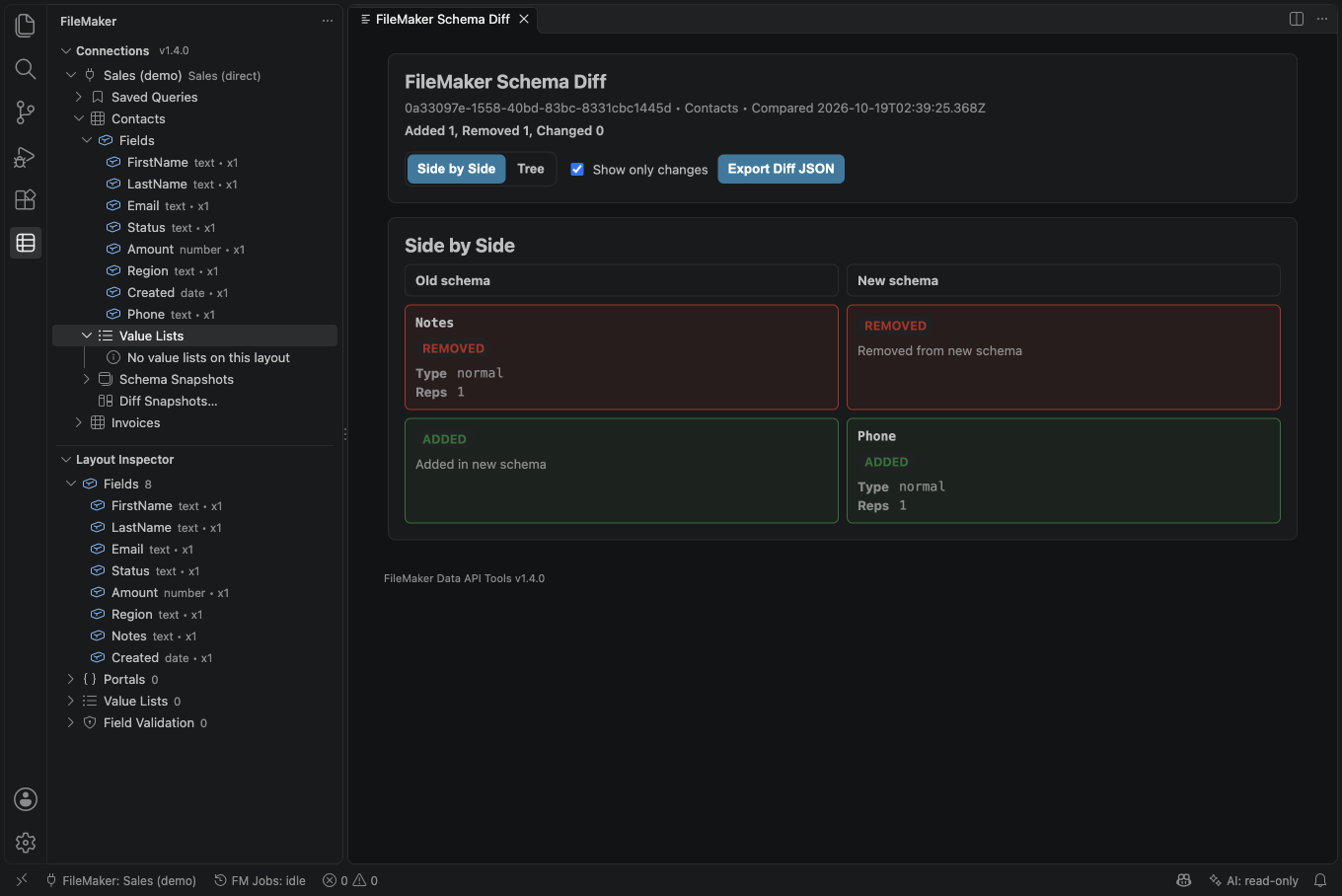
Layout names that contain .. (for example Q1..Q2) are supported in snapshots and the offline cache. Snapshots are stored in .vscode/filemaker/snapshots/ in a trusted workspace (filemaker.schema.snapshots.storage = workspaceFiles, the default), or in VS Code workspace storage in an untrusted one. The newest 20 per layout are kept (filemaker.schema.snapshots.maxPerLayout). Treat the files as internal project data: they contain your layout and field names.
With filemaker.schema.diagnostics.enabled, changes found by Diff Against Latest Snapshot are also listed in the Problems panel.
FileMaker: Open Schema Snapshot JSON opens a snapshot file.
Limit (records per page) and offset (starting record) must each be a whole number of at least 1. Zero is refused before sending a request.
If a create, edit, delete or script times out, the change may have been applied. Check the record before trying again; a script may still be running. The timeout shows tenths of a second (for example, 1.5 s), and these uncertain changes are not marked for automatic retry. HTTP 413 means to send a smaller file or fewer records. For HTTP 429, wait for the time shown in Retry-After before trying again. HTTP 500, 502 or 504 without a FileMaker code means server or proxy trouble: try later or ask the administrator to check the Admin Console. A FileMaker code in brackets has its own meaning: 500 is a date validation problem, 502 is a number validation problem, and 504 needs a unique value.
Generate types, a client and snippets
Generation writes files, so it needs a trusted workspace. The client folder chooser starts at .filemaker/generated/client; choose another folder if needed. Types use the configured filemaker-types folder and snippets use snippets. Files never go into the workspace root unless you choose that folder.
Generated files have a header saying they were generated by FileMaker Data API Tools. Before replacing an existing file without this header, the extension names the files and offers Overwrite, Skip existing, or Cancel. Cancel stops that generation; Skip existing leaves those files alone. Review generated files before editing them: a later generation can refresh files that still have the header. AI context keeps its marked section separate from other text and asks before adding a section to an existing file. It refuses project document names such as README.md and CHANGELOG.md. FM Web layout pages use the same overwrite choices; runtime template files that you edited continue to be skipped.
| Command | What it writes |
|---|---|
| FileMaker: Generate Types for Layout | <output folder>/layouts/<layout file name>.ts, a TypeScript interface for one layout |
| FileMaker: Generate Types for All Layouts | the same, for every layout. A layout whose metadata cannot be read is skipped (the reason goes to the Output channel) and the rest are still generated. |
| FileMaker: Generate TypeScript Client | first asks you to tick the layouts to include (a multi-select list), then for a folder, then writes types.ts, client.ts and README.md there |
| FileMaker: Generate Snippets for Layout | adds two editor snippets to snippets/filemaker-data-api.code-snippets in the workspace root. Their descriptions show field result types and kinds when metadata is available. They call this extension's commands (filemakerDataApiTools.runFindJson and filemakerDataApiTools.getRecordById) from VS Code extension code; they are not Data API client snippets. |
The output folder is filemaker.typegen.outputDir (default filemaker-types, inside the workspace). FileMaker: Open Generated Types Folder opens it.
Field types. Generated files use the field's result type. Numbers become TypeScript number. JavaScript can lose precision for whole numbers beyond 2^53 - 1 (9,007,199,254,740,991) and for long decimals; a note in the generated file warns about this. If an identifier or amount must stay exact, ask your FileMaker administrator about storing it as text. Dates, times and timestamps stay as strings in the format used by the FileMaker file's locale, so do not assume they are ISO dates. Container values are URL strings. A repeating field uses optional keys such as Name(1), Name(2) and so on, through its maximum repetition. The Layout Inspector and schema comparison show the result type separately from the field kind (normal, calculation, summary or global).
Empty finds and errors. A generated client's find returns an empty list for FileMaker code 401, including when the server reports HTTP 200, 404 or 500. This also happens if the starting record is past the last match. In the Query Builder the total match count stays visible when FileMaker supplies it, even on an empty page; choose an earlier starting record to see the matches. Other generated-client failures include the FileMaker code, HTTP status and full messages list on the error. A web page instead of a Data API reply gives a message to check the server address and proxy. Regenerate older clients to get these fixes. Names such as __proto__, constructor, toString and hasOwnProperty are kept exactly, just like other layout and field names. For request fields with these names, follow the generated README example, which starts with Object.create(null) so JavaScript does not confuse them with its built-in object properties.
File names. A layout name made only of letters, digits, _, . and - is used as it is (Contacts.ts). If the name has any other character (a space, /, :, accents), the unusable characters become _ and a short hash of the original name is added, for example My_Layout-1a2b3c4d.ts. Two layouts whose names differ only in punctuation therefore get separate files. Reserved Windows names such as CON get a safe name. Names that differ only in letter case can still collide on a case-insensitive file system. If you generated files with an older version, delete the old files for layouts whose names have spaces or punctuation.
Database names are escaped when they are written into comments, strings and snippets, so a layout name cannot put code in a generated file.
Regenerate after a schema change, and use a schema diff to see which fields moved.
FM Web and Layout Mode
FM Web is an experimental workflow for designing web layouts that sit on top of your FileMaker data and generating a small Next.js app from them. Everything is under .fmweb/ in the workspace and needs a trusted workspace.
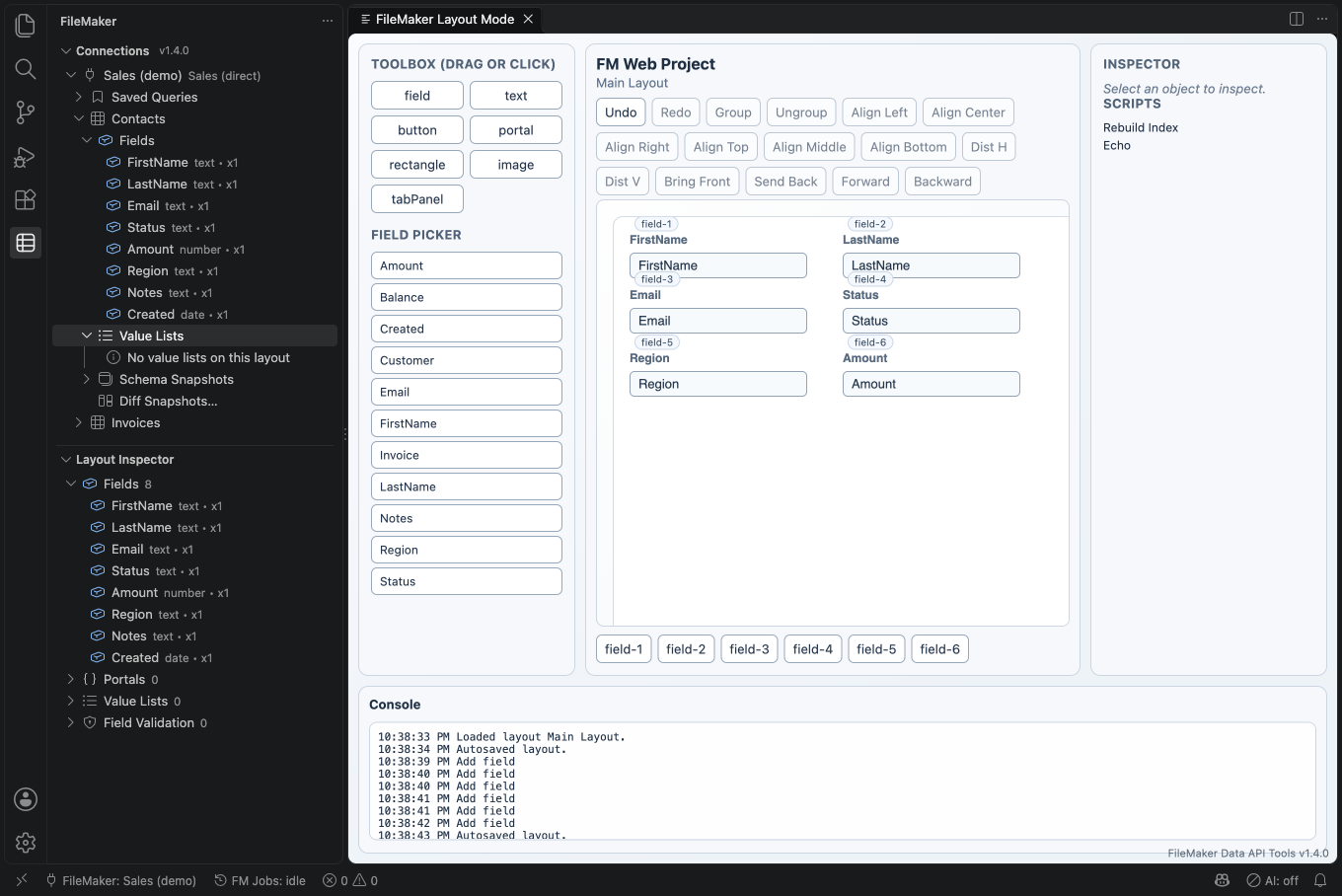
- FileMaker: Initialize FM Web Project creates
.fmweb/. - FileMaker: Select Active Profile and FileMaker: Sync FM Web Project Metadata copy layout, field and script metadata into
.fmweb/metadata. - FileMaker: Open FM Web Layout Mode opens the designer. Layouts are saved in
.fmweb/layouts. - FileMaker: Generate FM Web Next.js App and FileMaker: Generate FM Web Layout Page write the app to
.fmweb/generated. - FileMaker: Start FM Web Preview Server starts a local bridge (bound to
127.0.0.1) and runs the app. The preview needs the source repository. The Marketplace extension does not include the preview app template, so in a Marketplace installation Generate FM Web Next.js App and Start FM Web Preview Server are hidden from the Command Palette (the commands that need the template are only listed when it is installed); invoking one another way, for example from a keybinding, still stops with "The FM Web preview is not available in this installation". Layout Mode and metadata sync work everywhere. To use the preview, work from a clone of the repository (see CONTRIBUTING.md).
New field chips (click to add, or drag onto the canvas) use an 8 px grid, labels on top and standard sizes. Existing layouts load as saved; moving and resizing existing objects still works as before. The page margin is 24 px, rows have at least 16 px between them (plus room for the top label), and columns have a 24 px gap.
| Field type or display | Width × height (px) |
|---|---|
| Text, or unknown type | 240 × 34 |
| Long or multiline text | 240 × 96 |
| Number | 120 × 34 |
| Date, time, timestamp | 160 × 34 |
| Checkbox or radio | 240 wide; 24 per option, at least 34 high (sizing capped at 50 options) |
| Container | 240 × 160 |
Layout Mode has three new actions:
- Arrange standard form uses One column or Two columns, in the source FileMaker layout's field order (down the left column, then down the right). With a selection it arranges only selected fields and portals; with no selection it arranges all fields and portals. Portals go underneath at full page width. A narrow canvas uses one column. A selection starts at its snapped top-left; if it conflicts with unselected objects, the selected block moves below them. The canvas grows to fit the resulting form. Text, buttons and other objects stay where they are; portal columns, settings and behaviors stay intact.
- Standardize selected / Standardize all applies standard field sizes, top labels and the 8 px grid without rearranging rows. Fields move left/up first to keep the control and top label within the canvas; only a canvas smaller than the standard field grows. Selection limits the action to those fields; no selection applies it to all fields. Field names, labels, bindings, behaviors and stacking order stay intact. Each arrangement or standardization is one Undo step.
- Apply starter template appears for a new, empty web layout. Blank is the default. Choose a synced Template FileMaker layout and Form, Two-column form, or Form + first portal, then apply. The portal template uses the first portal listed in metadata; if there is none, it creates just the form. Templates use every field in the chosen layout, retain names exactly (including spaces), and can be undone in one step, including the field palette and source choice. Layout names are sent initially; full template descriptors load only for the current source and on demand for other choices. Layouts without a FileMaker source retain their cross-layout field palette: its deduplicated type descriptors are capped at 256 KiB (UTF-8 JSON), with text sizing for omitted descriptors. This preserves access to their fields without sending every layout’s full template metadata. Sync metadata first to supply types and field order; unavailable types use text sizing.
FM Web checks its output folders before creating files. Your workspace folder may itself be a symbolic link, but a link below it, including .fmweb, generated or runtime-next, is refused. Choose a real folder there and try again.
The web page loads records when it opens. Find lists records again; Prev, Next and Reload browse them. A loading message explains when records are being read, an empty page says there are no records, and a failed request shows its reason. If the page says “Cannot reach the extension. Is the preview server running in VS Code?”, start the preview server again in VS Code. A saved-record message clears when you choose Prev or Next.
Choose Edit to change the current record, then Save or Cancel. Only changed fields are sent. If someone changed the record after you opened it, the save is refused with error 306 and your draft stays on screen. Copy any changes you need to keep, choose Cancel, then Reload before editing again. Choose Create to fill in a new record and Save to create it, or Cancel to leave it. Delete asks you to confirm.
When field details are available, calculated fields, summary fields and containers cannot be edited here; each has the same note as the Record Editor. Older layouts use any stored field details to recognize these fields too. An unfamiliar field kind still lets the layout open. Without any field details, fields remain editable and FileMaker decides whether a change is allowed. If FileMaker refuses a field, the page explains why and keeps your draft; sync the project metadata and generate the layout page again to update its field details. Global fields can be edited and have a session-wide note. Image container links show an image; other container links can be opened. Empty fields stay empty. Dates use text boxes in the server's date format, for example 31/12/2026; keep that format when changing a date. The date format reminder appears only while editing. Dates you leave alone keep their original value and are left out of the update. Number and date checks follow the Record Editor: safely sized decimal numbers are sent as numbers, larger numbers stay text, and FileMaker checks the final number/date format and field rules. Required fields are checked before saving. Text and spaces are kept as entered. If text contains NUL, the page explains that FileMaker may drop the rest and offers to remove only that character or cancel; if removal empties a field, it tells you before saving.
The bridge connection detail is hidden during normal use. Add ?debug=1 to the page address (or &debug=1 if it already has a question mark) to show it when checking a preview problem.
When you run Generate FM Web Next.js App or Start FM Web Preview Server again, the extension refreshes the few managed runtime files (marked fmweb-managed: runtime template v7) in an app you generated earlier. It never overwrites a file you edited and never follows a symbolic link: such files are left as they are, and a warning names each one ("These generated preview files were edited (or are symbolic links), so they were not updated: ..."). Delete the named files and run the command again to get fresh copies; until then the preview may still show the older behaviour. The shared field controls are copied into the preview app’s shared folder. Untouched shared files from known older versions refresh automatically too; edited files stay as they are and the warning names them. The app also includes the test settings and test tools it needs. After its dependencies are available, you can run its own tests from the generated app folder.
New fields added from the picker or toolbox continue below existing objects on the standard grid, including room for labels. The page grows as needed. Opening Edit Record by ID loads the supplied record automatically.
Query Builder find values, Record Editor, Record Viewer and FM Web use the same kinds of field boxes, widths, top labels and 16 px / 24 px gaps. Query Builder field choices and result columns follow layout order. Find boxes stay available for searching calculation and summary values; container searches use a text box. Narrow panels stack fields into one column. Metadata unavailable means text sizing. These rules affect presentation only; find expressions, editing, copying and validation work as before. Generated web layout pages use the same renderer as Layout Mode: saved field sizes and label positions are retained on wide screens, and objects stack in saved order at 640 px or narrower.
Confirmations you will see:
- Start FM Web Preview Server shows the folder and asks before it runs
npm installandnpm run devthere. The folder'spackage.jsoncan come from a repository, and npm runs the scripts it defines. Only continue if you trust it. - A layout button that runs a script (a
runScriptbehavior) asks before it runs, naming the script, the parameter and the connection, and saying when the project file chose that connection. It also needs the script runner enabled, offline mode off and a policy that allows scripts.
The bridge accepts requests only from your own computer, it needs a trusted workspace, every request must carry a session token, and it serves only the active connection. The token is written to a private .env.local in the generated app and sent by the generated client; apps you generated earlier get their managed runtime files refreshed to the current template, and an app whose files you edited is left alone with a warning. Record changes and script runs follow your own limits:
- Record changes (edit, create, delete) are refused in offline mode, when
filemaker.features.recordEdit.enabledis off, and when the enterprise role ordisabledFeaturesdisallowwriteOperationsorrecordEdit. - Script runs are refused in offline mode, when
filemaker.features.scriptRunner.enabledis off, and when the enterprise role ordisabledFeaturesdisallowscriptRunner.
For the layout file format, architecture and bridge security details, see FM_WEB.md.
Offline mode
Offline mode keeps you working with what the extension has already learned about your schema, and blocks changes.
- Run FileMaker: Toggle Offline Mode. The sidebar shows an OFFLINE MODE badge.
- Layout and field metadata is served from a cache in
.vscode/filemaker/offline-metadata/. The extension fills the cache whenever it reads layout metadata while online. FileMaker: Refresh Offline Metadata Cache caches every layout of a profile in one go. A layout you never opened shows "no cached metadata". - Writes are disabled: record edit, create, delete and upload, batch update, the Script Runner, and adding, editing or removing profiles.
- A warning appears when the cache is older than
filemaker.offline.staleCacheWarnHours(default 24).
Offline mode does not block finds or opening records: those still call the server, and fail if it is unreachable.
Turning it off. Run FileMaker: Toggle Offline Mode again. The command changes your user setting and tells you the mode that is really in effect. If a workspace setting (for example offline.mode: true written into .vscode/settings.json by an older version of this extension) keeps offline mode on, the message says so ("still on because of ...") and the command cannot clear it: edit the workspace setting yourself. A workspace can turn offline mode on but never off. Offline mode set in your user settings applies to every workspace you open.
Enterprise mode and roles
Enterprise mode adds role-based limits for shared or regulated environments. It is off by default.
Set filemaker.enterprise.mode to true and filemaker.enterprise.role to one of:
| Role | What it can do |
|---|---|
viewer |
Read only. Blocked: record edit, create, delete, upload, batch update, the Script Runner, profile add/edit/remove, environment set creation, export of comparison reports, plugins. |
developer (default) |
Everything except exporting environment comparison reports and loading plugins. |
admin |
Everything. |
A team can also put .vscode/filemaker.config.json in a repository:
{
  "enterpriseMode": true,
  "role": "viewer",
  "lockedProfiles": ["<profile id>"],
  "disabledFeatures": ["batchUpdate", "scriptRunner"],
  "enforcedPerformanceMode": "standard",
  "defaultEnvironmentSets": [{ "name": "All", "profiles": ["<profile id>"] }]
}
The feature names for disabledFeatures are recordEdit, batchUpdate, environmentExport, pluginInstall, scriptRunner, writeOperations and ai.
Restrict-only. A repository can make the policy stricter but never looser. A workspace setting or this file can turn enterprise mode on and lower the role, but it cannot turn enterprise mode off or raise the role above the one in your own user settings (the default is developer). If you used a repository file to grant admin, set it in your user settings instead. In the same way, a workspace can switch offline mode on or a filemaker.features.*.enabled switch off, but not the reverse.
Environment Sets group profiles (for example Dev, Staging, Production) so you can compare them. With enterprise mode on, use FileMaker: Create Environment Set, FileMaker: Compare Environments, FileMaker: Diff Layout Across Environments, FileMaker: Export Environment Comparison Report and FileMaker: Open Environment Set JSON.
Plugins
Plugins are JavaScript modules that add commands and tree views. The extension looks for them in .vscode/filemaker-plugins/ in a trusted workspace.
A plugin runs with the same access as the extension: your saved connections and sessions. So the extension asks first:
- When it finds plugins, a dialog names the files and the workspace. Choose to run them only if you trust the repository.
- The extension hashes every file in the folder. Your approval is remembered for that workspace and that exact content. If any file is added, changed or removed, you are asked again.
- A folder with more than 500 files, more than 20 MB in total, or a symbolic link, is refused with a message saying why.
Plugins are not loaded in an untrusted workspace, and in enterprise mode only for roles that allow pluginInstall (admin). Anything a plugin loads from outside its folder is not checked. FileMaker: List Active Plugins and FileMaker: Reload Plugins are in the Command Palette when filemaker.advanced.powerUserMode is on.
Using AI with FileMaker
AI features are off by default. Nothing is read by an AI tool until you turn it on in your own user settings and choose a connection.
Read this first. Anything an AI tool reads is sent to the AI model provider you use, and it can leave through any shell, web or git tool the same agent has. Field values and names are text from your database; a hostile value or name can try to steer an agent. The controls below reduce this. They do not remove it. Connect with a dedicated FileMaker account that has a read-only privilege set: it is the only control that does not depend on the model or on you.
There are four parts, and you can use them separately:
| Part | What it does | Where the data goes |
|---|---|---|
| Write AI Context | Writes a Markdown file of layout, field and script names for AI coding tools to load | Only to the file you choose; no record data |
| AI tools in VS Code | Lets agent mode in VS Code (for example Copilot) read records and, if allowed, change them | To the model provider VS Code uses |
| @filemaker chat | Read-only commands in the Chat view: layouts, fields, finds, error codes | Names go to the model for plain-language finds; record values stay on screen |
| External MCP server | Lets Claude Code, Cursor and other MCP clients use the same tools | To the provider behind that client |
Minimum to try it
Read-only, about five minutes:
- Connect to a server as in First run in 10 minutes. Use an account whose privilege set is read-only.
- Open your user settings (see Opening your user settings) and add
"filemaker.ai.enabled": true. - Run FileMaker: Set AI Access for Connection, pick the connection, choose Read, and answer Use for AI Tools.
- Open an AI agent in VS Code that supports tools (for example Copilot in agent mode) and ask it to list the layouts of your FileMaker database. The first time it reads a layout, VS Code shows a prompt from this extension; approve it.
- To stop at any time, select the
AI:item in the status bar.
Nothing else is needed. Writes and scripts stay unavailable until you switch them on (see Rules and limits below). The rest of this chapter explains what each part does and what protects you.
Write AI Context
AI models guess layout and field names and get find requests wrong. This command gives them the real names.
- Run FileMaker: Write AI Context.
- Choose a connection if asked, then tick the layouts to describe. None are selected by default and the limit is 50.
- The extension reads their fields and the script names and writes a Markdown file of at most 20 KB.
What is in it: the connection name, database name, and the names of the layouts, fields and scripts you picked. What is not: record data, value-list values, field descriptions, the server address, the user name or any credential.
Where it goes: by default, the extension's storage folder (outside any repository). You are offered Open File, and Copy into Workspace (to .filemaker/ai-context.md). If the file lands inside the workspace, you are asked whether to add it to .gitignore, because it holds database structure.
To write into a file of your own, such as AGENTS.md, set filemaker.ai.contextPath in your user settings to a path relative to the workspace folder (or any file inside the workspace). If the file already exists without the markers, the command asks and, if you choose Add to the file, appends a new section at the end and leaves the rest alone. To control where the section goes, add the two marker lines <!-- filemaker-ai-context:start --> and <!-- filemaker-ai-context:end --> where the section should go. The command replaces only the text between them and refuses to touch anything else. Symbolic links, .git and paths outside the workspace are refused, and a workspace cannot set this path.
Names are cleaned: letters, digits, space and _ - . : ( ), up to 64 characters. Anything else becomes a placeholder and is counted in the file header. The file says its content is data. A name made only of allowed characters can still read like an instruction to a model, so treat the file as data and keep it out of public repositories.
AI tools in VS Code (agent mode)
To let an agent use a connection:
- In your user settings, turn on
filemaker.ai.enabled. A workspace setting cannot turn it on. - Run FileMaker: Set AI Access for Connection, pick the connection, and choose Read (or Write, see below). A message then reminds you to use a restricted account and offers Use for AI Tools, which sets
filemaker.ai.connection. A profile's AI access is reset to none when you change its server, user, database or API paths, so you set it again after such an edit. A repository file cannot choose the connection. - Open the agent in VS Code. The tools appear in its tool list.
The status bar shows the state: AI: off, AI: off (connection not enabled), AI: read-only, AI: writes on or AI: scripts on. The hover text shows records read, write attempts used and the FileMaker account in use.
Rules and limits
These are the controls the extension applies. They are the reasons it is safe to try; read them before you allow writes or scripts.
- Read-only. The tools that read are
fm_list_layouts,fm_describe_layout,fm_list_scripts,fm_find_records,fm_get_recordandfm_explain_error. Write tools are not offered at all until you switch them on. - Writes are opt-in.
filemaker.ai.allowWritesaddsfm_edit_record,fm_create_recordandfm_delete_record(one record per call), and the connection must be set to Write.filemaker.ai.allowScriptsaddsfm_run_script, which also needs the connection's access to be Write and is limited to the scripts you list infilemaker.ai.scriptAllowlist, for example{"<profile id>": ["Export Report"]}. These settings are read from your user settings only. - Read-only fields cannot be written by AI tools. Calculation, summary and container fields are refused before the write approval dialog, using the layout field list. FileMaker still checks your account’s permissions.
- Every write is confirmed by you. Each change opens a dialog built by the extension from a fresh read of the record. VS Code cannot set it to "always allow". It shows the connection, layout, record, every field with the old and new value, and the AI's own description, labelled as the AI's. Deleting asks you to type the record ID. A record changed in the meantime is not overwritten. A write is limited to 10 fields and 200 characters per value, and the whole dialog text to 4,000 characters (escaped characters take extra room), so that the dialog can show all of it; a larger write is refused.
- You approve each layout. The first read of a layout in a session asks you (at most 20 layouts a session). List layouts you trust in
filemaker.ai.readableLayoutsto skip the question. - Limits. 50 records per call, 500 records per session, 30 calls a minute, 10 write attempts per session and 3 a minute (a declined attempt counts). Results are capped at 200 KB.
- Hidden fields.
filemaker.ai.hiddenFieldslists field names AI tools never see (case-insensitive, with or withoutTable::). Write AI Context honours it too: hidden fields are left out of the context file, and the file and the confirmation say how many were left out. This is by name only. It does not stop disclosure through a calculation, a summary field or a script result. - Offline mode blocks AI reads as well as writes. AI tools are not registered in an untrusted workspace.
- Portal results: AI record reads include at most 20 rows per portal. If rows were left out by this limit or by the server, the answer reports
truncated: true. Returned and total counts are included when FileMaker supplies the total; there is no automatic portal paging. - Left out of results: container fields and URLs, and the server address. Text that looks like a secret is redacted, which can rewrite a field value that looks like one; writes refuse values that contain the redaction marker.
Chat with @filemaker
@filemaker is a participant in VS Code's Chat view. It reads the database through the same AI tools and the same rules as agent mode, and it is read only: it has no command that edits, creates, deletes or runs a script, even if you switched writes and scripts on for agent mode. It needs the same setup: filemaker.ai.enabled in your user settings and a connection set with FileMaker: Set AI Access for Connection.
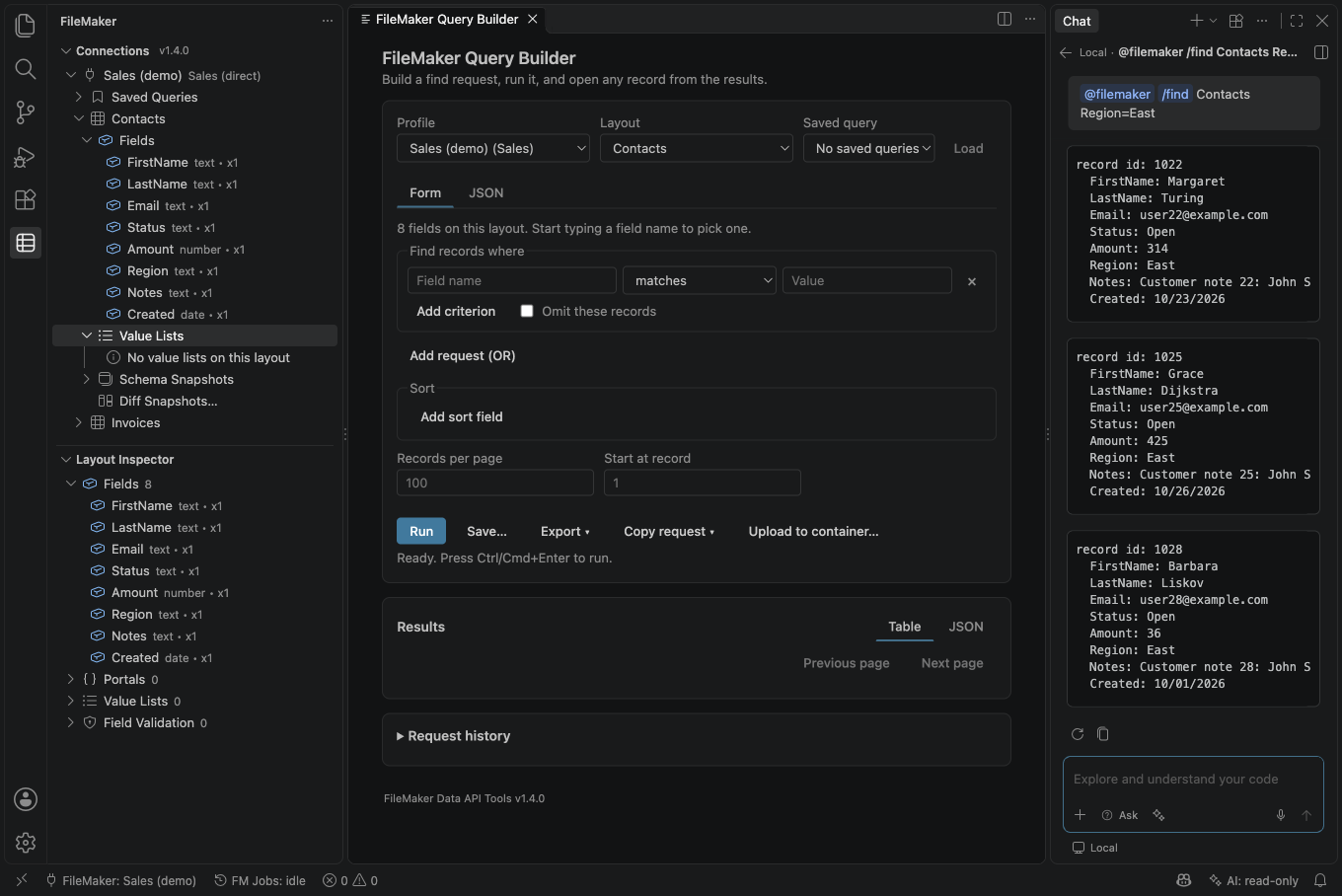
Type @filemaker in the Chat view, then:
| Command | What it does |
|---|---|
/layouts |
Lists the layouts of the connection chosen for AI. |
/describe LAYOUT |
Shows the fields and their types. Hidden fields are left out. Value lists are not available through AI tools, so they are not shown. |
/find LAYOUT criteria |
Finds records. Name==Ada; City=Paris (field names exactly as /describe shows them, separated by ;) is sent as written. Any other text, such as /find Customers people in Paris named Ada, is turned into a search by the language model you picked in the chat; the extension checks the search exactly as it checks a tool call, and shows it before it runs. A Field=value search returns up to 10 records; at most 20 records are ever shown. |
/explain CODE |
Explains a FileMaker error code. With no code it uses the last FileMaker error @filemaker saw. |
/help |
Lists the commands. |
Which settings matter: filemaker.ai.enabled, the connection chosen with Set AI Access for Connection (filemaker.ai.connection), filemaker.ai.hiddenFields and filemaker.ai.readableLayouts. filemaker.ai.allowWrites, filemaker.ai.allowScripts and the script allowlist do not matter here: the participant never offers a write or a script.
What you will see:
- In an untrusted workspace (Restricted Mode) the AI tools are not registered, but
@filemakeris still listed. It answers every request with "AI tools are not available right now" and the reason ("AI tools are unavailable in an untrusted workspace"), and reads nothing. Trust the workspace to use it. Offline mode and an enterprise policy that switches AI off give the same kind of answer, naming the reason. - A request longer than 1,000 characters is refused.
- The first time
@filemakerreads a layout in a session, the extension asks you, as for any AI tool. The limits (50 records a call, 500 a session, 30 calls a minute) and the kill switch apply, and a/findis three tool calls. - Layout names, field names and record values are shown as plain text in boxes. Nothing from the database is shown as a link, image or button.
- If AI tools are off,
@filemakersays so and gives a button that opens the AI settings. The status bar kill switch, an untrusted workspace, offline mode and enterprise policy turn it off too, and it tells you which. - Calls from chat appear in Show AI Activity with the client
chat participant.
What is sent to the model: only for plain-language /find, the model you chose in the chat gets the layout name, that layout's field names (hidden fields removed) and the words you typed. It does not get record values, connection names, the server address or credentials, and it can only ask for one read-only search. Record values are shown in the chat and stay in the chat history of VS Code, which later chat messages (yours or another participant's) can send to a model. Field names are text from your database, so a hostile field name can still reach the model; use a read-only FileMaker account.
Kill switch, sessions and activity
AI tools in VS Code, @filemaker chat and external tools share the same session limits, layout approvals and hidden-field rules. Every AI write still asks for confirmation.
Three commands exist for this. They appear in the Command Palette only while AI tools are active (switched on and offered); the status bar item always works.
- FileMaker: Switch AI Tools Off or On, or select the
AI:status bar item, switches every AI tool off at once. Select the status bar item again to switch back on; you are asked first. Switching off and on does not reset any limit. While tools are switched off the command is hidden from the palette, so use the status bar item to turn them back on. - FileMaker: Start New AI Session resets the record quota, the write counters and all layout approvals, after asking you.
- FileMaker: Show AI Activity opens a log of what was called: tool, connection, layout, record IDs, outcome and whether you confirmed. It does not record field values, is kept outside the workspace, and is capped at 256 KB.
Keep policy in your user settings. A workspace file can be edited by an agent that has file-editing tools. Put filemaker.ai.hiddenFields and the enterprise switches (filemaker.features.ai.enabled, an ai entry in disabledFeatures) in your user settings, or in an enterprise-managed location, not only in .vscode/settings.json. A workspace or enterprise file can switch AI off through filemaker.features.ai.enabled or disabledFeatures, and cannot switch it on.
Claude Code, Cursor and other MCP clients
The same tools, with the same limits, approvals and dialogs, are available to MCP clients that run outside VS Code. This is off by default and works only in local VS Code windows, not in Dev Containers, Codespaces, SSH or WSL windows (the server will not start there).
- Set up AI access as above (turn on
filemaker.ai.enabled, set a connection). - In the window you want to use, run FileMaker: Start/Stop AI Server for External Tools. The command always asks in a dialog first; the dialog says the server will start automatically each time you open this workspace. If
filemaker.ai.externalServer.enabledis off, the same dialog turns it on in your user settings. Nothing can start the server, or make it start automatically, without that dialog. The status bar item then readsAI: ... · MCP, and its tooltip shows the number of connections. Running the command again to stop the server asks nothing. - Run FileMaker: Copy MCP Config for Claude Code / Cursor and paste the result into Claude Code's
.mcp.json(or useclaude mcp add-json filemaker '<the filemaker entry>') or into Cursor'smcp.json. The config points at a copy of the client program (aiMcpShim.js) kept in the extension's storage, in a folder only you can use, so it keeps working after extension updates. If the copy could not be made, the message says so and you copy the config again after an update. - The client starts that small program with
node, and it connects to your VS Code window. Node.js 18 or newer must be on the PATH of the client; without it the config cannot run.
The setting is a permission, not a switch. filemaker.ai.externalServer.enabled (user settings only) only allows the server; it never starts it. A window runs the server only after you ran Start/Stop AI Server for External Tools in that window and confirmed. VS Code remembers that for that workspace and starts the server again each time you open it, while the setting is on, until you run the same command there to stop it. Stopping persists, also after a restart. Turning the setting off stops the server in every window where it runs and ends the automatic start for every workspace, including closed ones; turning the setting on again does not bring them back, and you start the server there again by running the command. A window you never started it in never runs it.
How it is protected: a socket in a folder only you can use (on Windows an unguessable named pipe), the folder name includes a hash of the product's storage path so VS Code, Insiders and Cursor do not share one; a secret per-session token in a file only you can read; the program checks that the window that wrote the file is still the same process before it sends the token. With several windows running the server, the config names the folder and the program refuses to guess. You get a notification when a program connects (at most one every 30 seconds), and the connection count is in the status bar tooltip. The name an MCP client gives itself appears only in Show AI Activity, never in a dialog. Layout approvals and write dialogs still appear in VS Code, and if the client cancels or disconnects while a dialog is open, nothing is sent whatever you answer. Everything the tools return is sent to the provider behind your MCP client, which is often a different provider from the one VS Code uses.
User settings vs Workspace settings in plain words
VS Code has two places to set most options. User settings are yours and follow you to every project. Workspace settings live in the project (.vscode/settings.json) and apply only there, to everyone who opens it. A project can therefore ship settings you did not choose, so this extension does not let a project loosen anything that protects you. That is why a value you type in the Workspace tab can seem to do nothing. There are three kinds of setting:
| Kind | What the Workspace tab does | Examples |
|---|---|---|
| User settings only | Nothing. A workspace value is ignored (VS Code may not even show the setting in the Workspace tab). | all filemaker.ai.* settings except hiddenFields, filemaker.secrets.fallback, filemaker.export.neutralizeFormulas |
| Workspace can only make this stricter | A value that adds a restriction counts; one that would loosen your user value is ignored. | filemaker.offline.mode (can only turn on), filemaker.features.*.enabled (can only turn off), filemaker.enterprise.mode (can only turn on), filemaker.enterprise.role (can only lower), filemaker.ai.hiddenFields (can only add names) |
| Per workspace | Works as you expect. Some are ignored until you trust the folder. | filemaker.savedQueries.scope, filemaker.typegen.outputDir, filemaker.schema.snapshots.storage, filemaker.batch.*, timeouts, and the rest |
Every setting's description in the Settings editor starts with one of these three labels.
See what is really in effect. Run FileMaker: Show Effective Settings. For every policy-related setting it shows the value in effect, where it comes from (Default, User, Workspace, Workspace Folder, Enterprise file or Restricted Mode), your User and Workspace values and, when a workspace value is ignored, a plain sentence saying why, with buttons to open the User or Workspace tab at that setting. The value in effect is read by the same code that applies the rule (and for the on/off switches the explanation is built from the same reading); the page is a snapshot that refreshes when settings change. When a configured value is not usable as written it adds a note: for example a User role that is not viewer, developer or admin is treated as developer, and a filemaker.typegen.outputDir that is empty, absolute or contains .. falls back to the default folder. When a project ships a value that is ignored, the extension also tells you once per setting for that workspace, with Don't show again for this workspace.
Limits worth knowing. In Restricted Mode VS Code hides workspace values of the restricted settings, so the page says they are ignored until you trust the folder, and the extension does not read the workspace settings files at all. In a trusted workspace it reads .vscode/settings.json and the .code-workspace file only to catch User-only settings (VS Code hides those); a file that is large, a link or not valid JSON is reported instead of being used. In a multi-root workspace a folder's .vscode/settings.json applies only to files in that folder, not to these window-wide settings.
Saved query scope. filemaker.savedQueries.scope stores workspace or global. workspace keeps queries for this workspace on this computer (VS Code stores them; they are not in your project files, and other workspaces do not see them); global makes them available in every workspace on this computer (on each machine separately in a remote window). Changing it does not move queries you already saved.
Settings reference
On the documentation website, wide tables scroll sideways on a small screen. Swipe the table to see the default values and notes.
Open Settings (Cmd+, / Ctrl+,) and search for filemaker; make sure the User tab is selected for the user-only settings (or see Opening your user settings). Not sure which value wins? Run FileMaker: Show Effective Settings. In the table, Badge is the same label that starts each setting's description in the Settings editor (see User settings vs Workspace settings):
- User or workspace: either; a workspace value applies only to that workspace.
- User only: read from your user settings only. A workspace or dev container value is ignored.
- ignored in an untrusted workspace: in Restricted Mode the setting's workspace value is not used.
- Workspace can only make it stricter: a workspace may turn offline mode on, a feature off, enterprise mode on, or the role lower, and never the reverse. A workspace value that would loosen your user value is ignored. Details: User settings vs Workspace settings in plain words.
- (T): VS Code ignores the workspace value in an untrusted workspace (Restricted Mode).
Connection
| Setting | Default | Badge | What it does |
|---|---|---|---|
filemaker.requestTimeoutMs |
15000 |
Per workspace | Timeout for each Data API request, in milliseconds. |
filemaker.defaultApiBasePath |
"/fmi/data" |
Per workspace | API path used when a profile does not set one. |
filemaker.defaultApiVersionPath |
"vLatest" |
Per workspace | Data API version segment used when a profile does not set one. |
filemaker.connect.maxRetries |
3 |
Per workspace | Retries of a failed sign-in on network or server errors. 0 turns retry off. |
filemaker.connect.backoffInitialMs |
1000 |
Per workspace | Delay before the first sign-in retry, in milliseconds. |
filemaker.connect.backoffMaxMs |
30000 |
Per workspace | Longest delay between sign-in retries, in milliseconds. |
filemaker.connect.backoffMultiplier |
2 |
Per workspace | Factor by which the retry delay grows. |
filemaker.connectionWizard.requireTestBeforeSave |
"warn" |
Per workspace | off, warn or block: whether saving a profile needs a successful Test Connection. |
filemaker.session.maxAgeMinutes |
14 |
Per workspace | Treat a session token as expired this many minutes after it was issued. |
filemaker.session.refreshLeadSeconds |
30 |
Per workspace | Renew the token this many seconds before it expires. 0 turns early renewal off. |
filemaker.secrets.fallback |
"vscode-only" |
User settings only | What to do when VS Code SecretStorage is unavailable: vscode-only (error), workspace-state (obfuscated copy keyed from the machine id; not protection against anyone with local access to VS Code state), disabled (do not store secrets; development only). |
Queries and History
| Setting | Default | Badge | What it does |
|---|---|---|---|
filemaker.savedQueries.scope |
"workspace" |
Per workspace | Where saved queries are kept: workspace or global. |
filemaker.history.maxEntries |
10 |
Per workspace | Request history entries kept per workspace. |
filemaker.snippets.includeAuthByDefault |
false |
Per workspace | Show an Authorization header with a variable to fill in ($FM_TOKEN, {{token}}) instead of <REDACTED> in copied requests (curl, fetch(), .http, Postman, TypeScript). A real token, password or API key is never written. |
Records, Scripts, and Batch
| Setting | Default | Badge | What it does |
|---|---|---|---|
filemaker.features.scriptRunner.enabled |
true |
Workspace can only make this stricter; ignored until you trust the folder | Turns the Script Runner off when false. |
filemaker.scripts.parameterBuilder.enabled |
true |
Per workspace | Shows the JSON parameter builder in the Script Runner. |
filemaker.export.neutralizeFormulas |
true |
User settings only | Put an apostrophe in front of CSV cells and Copy results as table cells that start with =, +, -, @, tab or carriage return. Turn off only if you need the raw text. |
filemaker.batch.maxRecords |
10000 |
Per workspace; ignored until you trust the folder | Most records a batch export fetches. |
filemaker.batch.concurrency |
4 |
Per workspace; ignored until you trust the folder | Requests sent at a time by a batch update (1 to 10). |
filemaker.batch.dryRunDefault |
true |
Per workspace; ignored until you trust the folder | Default mode shown for batch updates. |
filemaker.features.recordEdit.enabled |
true |
Workspace can only make this stricter; ignored until you trust the folder | Turns the Record Editor write-back and container upload off when false. |
filemaker.containerUploadMaxBytes |
104857600 |
Per workspace | Largest file Upload to Container accepts, in bytes (default 100 MB). |
filemaker.features.batch.enabled |
true |
Workspace can only make this stricter; ignored until you trust the folder | Turns batch export and update off when false. |
filemaker.performance.mode |
"standard" |
Per workspace | standard or high-scale. High-scale writes batch exports as JSONL. |
Schema
| Setting | Default | Badge | What it does |
|---|---|---|---|
filemaker.schema.cacheTtlSeconds |
300 |
Per workspace | How long layout metadata is cached, in seconds. |
filemaker.schema.metadataEnabled |
true |
Per workspace | Looks up layout metadata for the sidebar, inspector and editors. |
filemaker.schema.snapshots.storage |
"workspaceFiles" |
Per workspace | workspaceFiles (.vscode/filemaker/snapshots/) or workspaceState. An untrusted workspace always uses workspaceState. |
filemaker.schema.snapshots.maxPerLayout |
20 |
Per workspace | Snapshots kept per layout; the oldest are removed. |
filemaker.schema.diagnostics.enabled |
false |
Per workspace | Lists snapshot differences in the Problems panel. |
filemaker.schema.hashAlgorithm |
"sha256" |
Per workspace | Hash used to fingerprint schema metadata. |
Code Generation
| Setting | Default | Badge | What it does |
|---|---|---|---|
filemaker.typegen.outputDir |
"filemaker-types" |
Per workspace; ignored until you trust the folder | Workspace folder for generated types (a relative path inside the workspace). |
FM Web Projects
| Setting | Default | Badge | What it does |
|---|---|---|---|
filemaker.fmWeb.bridge.rateLimitPerSecond |
20 |
Per workspace | Sustained requests per second the FM Web bridge accepts. Extra requests get HTTP 429. |
filemaker.fmWeb.bridge.rateLimitBurst |
60 |
Per workspace | Largest burst the FM Web bridge accepts at once. |
filemaker.fmWeb.bridge.requestBudget |
10000 |
Per workspace | Total requests per bridge session; restart the bridge to reset. |
Offline Mode
| Setting | Default | Badge | What it does |
|---|---|---|---|
filemaker.offline.mode |
false |
Workspace can only make this stricter; ignored until you trust the folder | Use cached metadata and block writes. |
filemaker.offline.staleCacheWarnHours |
24 |
Per workspace | Warn when the offline cache is older than this many hours. 0 turns the warning off. |
Enterprise
| Setting | Default | Badge | What it does |
|---|---|---|---|
filemaker.enterprise.mode |
false |
Workspace can only make this stricter; ignored until you trust the folder | Turns on role-based limits. |
filemaker.enterprise.role |
"developer" |
Workspace can only make this stricter; ignored until you trust the folder | viewer, developer or admin. |
Advanced
| Setting | Default | Badge | What it does |
|---|---|---|---|
filemakerDataApiTools.logLevel |
"info" |
Per workspace | Old name of filemaker.logging.level. |
filemakerDataApiTools.requestTimeoutMs |
15000 |
Per workspace | Old name of filemaker.requestTimeoutMs. |
filemakerDataApiTools.defaultApiBasePath |
"/fmi/data" |
Per workspace | Old name of filemaker.defaultApiBasePath. |
filemakerDataApiTools.defaultApiVersionPath |
"vLatest" |
Per workspace | Old name of filemaker.defaultApiVersionPath. |
filemaker.advanced.powerUserMode |
false |
Per workspace | Shows history, diagnostics dashboard, circuit breaker and plugin commands in the Command Palette. Cancel Job and Show Jobs are always available. |
filemaker.logging.level |
"info" |
Per workspace | Log level for the Output channel: debug, info, warn, error. |
AI Tools
| Setting | Default | Badge | What it does |
|---|---|---|---|
filemaker.ai.contextPath |
"" |
User settings only | File that Write AI Context writes. Empty means the extension storage folder. |
filemaker.ai.enabled |
false |
User settings only | Lets AI tools in VS Code use the connection in filemaker.ai.connection. |
filemaker.ai.allowWrites |
false |
User settings only | Offers the tools that create, edit and delete one record. Needs connection access Write. |
filemaker.ai.allowScripts |
false |
User settings only | Offers the tool that runs scripts from the allowlist. |
filemaker.ai.scriptAllowlist |
{} |
User settings only | Scripts AI tools may run, by profile id: {"<profile id>": ["Script Name"]}. |
filemaker.ai.readableLayouts |
{} |
User settings only | Layouts AI tools may read without asking, by profile id. |
filemaker.ai.hiddenFields |
[] |
Workspace can only make this stricter | Field names AI tools never see, in tool results and in the file written by Write AI Context. A workspace can add names, not remove yours. |
filemaker.ai.connection |
"" |
User settings only | Profile id AI tools use. Set it with Set AI Access for Connection. |
filemaker.features.ai.enabled |
true |
Workspace can only make this stricter; ignored until you trust the folder | A workspace or enterprise switch that can turn AI tools off. It cannot turn them on. |
filemaker.ai.externalServer.enabled |
false |
User settings only | Permission for MCP clients (Claude Code, Cursor) to use the AI tools through a local server. It never starts the server; you start it in a window with Start/Stop AI Server for External Tools. |
Old names: filemakerDataApiTools.logLevel, .requestTimeoutMs, .defaultApiBasePath and .defaultApiVersionPath still work but are replaced by filemaker.logging.level, filemaker.requestTimeoutMs, filemaker.defaultApiBasePath and filemaker.defaultApiVersionPath. A more specific value wins whichever name it uses. The extension offers a one-click migration.
Security behavior you will notice
Error messages hide plain-text api_key values and X-FM-Data-Access-Token headers.
- Workspace trust. In an untrusted workspace (Restricted Mode, see above) you can browse, read metadata and run finds. Editing, creating and deleting records, uploading to containers, the Script Runner, batch export and update, writing files (type generation, snippets, snapshots on disk, the AI context copy, FM Web), plugins, the FM Web preview and AI tools need a trusted workspace. Trust is checked each time, and an open panel refuses changes if trust is lost. This is not a free pass in a trusted workspace: the prompts below still apply.
- Virtual workspaces (such as github.dev) are not supported: the extension writes files to a folder on disk.
- Prompts before risky actions. You are asked before: saving a record (lists the changed fields), deleting a record, running a batch update, running workspace plugins, starting the FM Web preview (
npm install,npm run dev), running a script from a Layout Mode button, switching AI tools back on, every AI write, and sending credentials to a template-supplied address or a remotehttp://address. - Secrets stay in the keychain. Passwords, API keys and session tokens are kept in VS Code SecretStorage and never shown in webviews.
- Redaction. Logs, request history, error details and copied snippets hide authorization headers, session tokens (including in request paths), token-like query parameters and JSON keys (anything containing
token,secret,password,sessionorapiKey), and passwords inside URLs. Copied requests (curl, fetch(), .http, Postman, TypeScript) never contain a password, session token or API key: the Authorization header shows<REDACTED>, or with the opt-in a variable name, and the server address loses any account or query string typed into it. - Certificates. The server certificate is checked, except for a profile that still has the older allow-self-signed setting (that skips every check, and shows a warning). You can trust one specific certificate by its fingerprint (never from a workspace file); a different certificate later is a hard failure, and for a normal or pinned profile nothing is sent before the certificate is checked. A pin is trust on first use: it does not authenticate who presented the certificate when you trusted it (see What pinning does and does not give you).
- Repositories cannot loosen your policy. Workspace settings and
.vscode/filemaker.config.jsoncan only restrict enterprise mode, roles, offline mode and feature switches. - No telemetry. The extension sends nothing to its authors. It talks only to your FileMaker server (or your proxy).
- Local files that hold schema. Snapshots, the offline cache, generated types and the AI context file contain layout and field names. Do not commit them to a public repository.
For the full picture, see docs/security.md and docs/DATA_HANDLING.md.
Troubleshooting
Connection errors name the step that failed and what to do. The most common first-run failure is a certificate error. Each error, with its symptom, its likely cause and its fix steps, is in the Troubleshooting page. A fuller catalogue of what can go wrong between VS Code and FileMaker, with what to ask your administrator, is in the FileMaker failure-mode catalogue (section 8 is "Troubleshooting by symptom").
Where to look first
- The message itself. Read it to the end: it says what happened and what to change. Notifications offer Retry only where trying again can help (not for certificates, privilege problems or FileMaker's own errors), Edit Profile only for rejected credentials or a wrong database name, Trust this certificate… or Review and re-trust for a certificate you may decide on, Open Settings for timeouts, and Details…. The details document shows the failing endpoint and the retry chain, redacted, and is safe to paste into a bug report.
- Test Connection (in the connection wizard) tells you which step failed: reaching the Data API, listing the databases, or signing in. See Test Connection, step by step.
- Status bar: the
FileMaker: <profile>item sayssign-in failed,certificate problemorunreachableafter a failed request; its tooltip repeats the reason. - Output panel: View > Output, then choose FileMaker Data API Tools in the dropdown. Set
filemaker.logging.leveltodebugfor more detail. Secrets are redacted. - FileMaker: Show Diagnostics opens a report with your VS Code and extension versions, operating system, active profile (no secrets), settings and recent log lines. Attach it to bug reports. FileMaker: Show Effective Settings shows the value in effect for the policy-related settings (24 of them: the switches, limits and paths a project could try to change), not every setting.
Connecting: certificates and network
- Nothing answers at that address: HTTP 404: nothing answered at that address.
- The server certificate is refused: certificate errors, a revoked, expired or replaced certificate, the custom CA file cannot be read and an old TLS version.
- A proxy is in the way: a proxy or a CORS rule is in the way.
- The server cannot be reached: the server cannot be reached or times out.
- The request was refused: HTTP 403: the request was refused.
Signing in
- The server refused the sign-in: HTTP 401: the server refused the request.
- The account is paused, locked or out of sessions: Error 214: too many sign-in attempts, Error 956: no free Data API sessions and Error 1703, or a FileMaker Cloud sign-in.
- The token timed out: The session expired.
- The password cannot be stored: The password cannot be stored, or the wizard asks for it again.
Data, privileges and batch jobs
- The result or the request is refused: a find returns nothing, the account lacks a privilege and the find or the script request is refused.
- The record changed under you: the record changed while you were working and a save worked but a script error is shown.
- Fields, layouts and commands are missing: a field is read-only, or layouts and fields are missing and commands are greyed out or missing.
- Batch work stops: a batch job stops or reports failed rows.
- The proxy answers instead of FileMaker: proxy mode: the proxy returns errors.
- Files, AI and settings: saved queries, generated files and CSV files, AI: off in the status bar and a setting seems to do nothing.
Which version am I running?
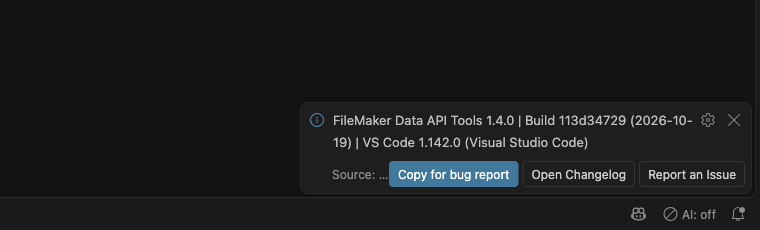
Run FileMaker: About / Show Version from the Command Palette. It shows the extension version, the build (commit and date), your VS Code version, the Extension host line (Node x, Electron y: use it to check whether your Node is 22.15 or newer, which the operating system certificate store needs), operating system, remote window, workspace trust and language. The same version appears without running anything: in the tooltip of the FileMaker status bar item, next to the FileMaker Explorer title (for example v1.4.0), at the bottom of each panel, and in the first line the extension writes to the Output panel when it starts.
The About message has three buttons: Copy for bug report (a short block of exactly those facts, plus whether AI tools and enterprise mode are on; it never holds a server address, profile name, user name, token or folder path), Open Changelog, and Report an Issue (opens the bug form with the version fields filled in). Show Diagnostics includes the same block.
Reporting a problem
Open an issue at https://github.com/SureForgeTech/filemaker-data-api-for-vs-code/issues and include: the extension and VS Code versions (run About / Show Version and choose Copy for bug report), your operating system, the server type and version, direct or proxy mode, the steps, and the redacted log or the Show Diagnostics report. Do not open a public issue for a security problem: see SECURITY.md.
FAQ
Does the extension send data anywhere besides my server? No. It has no telemetry. It talks only to your FileMaker server or proxy. AI features send data to an AI provider only if you turn them on, and only what a tool returns.
Which FileMaker versions work? Server 21 is the primary target; 19 and 20 are expected to work; FileMaker Cloud is untested (the extension has no Claris ID login; whether a tenant accepts an account name and password is not confirmed). See Compatibility.
Does it support OAuth or single sign-on? No. Direct mode uses an account name and password. If you need another identity flow, put a proxy in front.
Where are my profiles and queries stored? Profiles in VS Code user data (secrets in the keychain). Saved queries in the workspace by default. Snapshots, the offline cache and generated files in the workspace. See DATA_HANDLING.md.
Can I share connections with my team? Share a profile template (no secrets) and saved queries (export and import). Everyone enters their own password.
Why can't I turn offline mode off? A workspace setting (for example offline.mode: true in .vscode/settings.json) can keep it on, and the toggle cannot clear that. The message names the cause. See Offline mode.
Why is the Command Palette missing some commands? Many appear only with a profile; enterprise and power-user commands need those modes. See The FileMaker sidebar.
Are there keyboard shortcuts? Yes, five come bound: Open Query Builder Ctrl+Alt+Q, Open Record Viewer Ctrl+Alt+V, Open Script Runner Ctrl+Alt+E, Show Request History Ctrl+Alt+H and Open FM Web Layout Mode Ctrl+Alt+L. On macOS each becomes Cmd+Alt plus the same letter (Cmd+Alt+Q, Cmd+Alt+V, Cmd+Alt+E, Cmd+Alt+L) — except Show Request History, which stays Ctrl+Alt+H there too, because Cmd+Alt+H is the system's Hide Others shortcut. Each key runs the same command as its Command Palette entry and follows the same rules (a profile for the first three, power-user mode for the history, an FM Web project for Layout Mode). They were checked against VS Code's own default shortcuts, and you can change or clear any of them in Keyboard Shortcuts (Ctrl+K Ctrl+S).
Can the extension edit scripts or layouts in the database? No. It uses the Data API, which reads and writes records, runs scripts and reads metadata. It does not change the database design.
Can I try it without a server? The repository includes a mock Data API for development. See CONTRIBUTING.md.
Where do I get help or report a bug? GitHub issues.