Step 1 — Add a connection profile
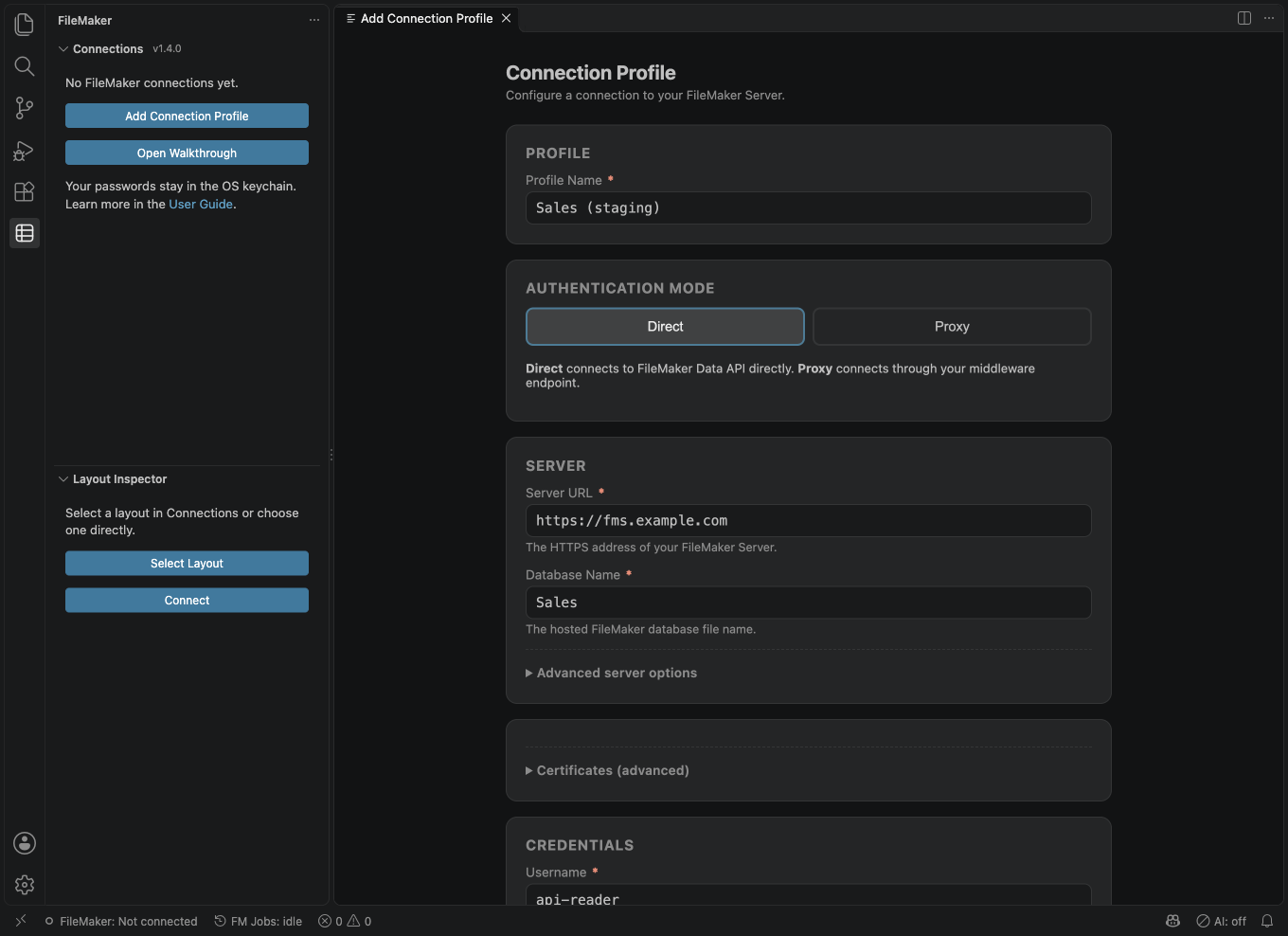
A connection profile stores how to reach your FileMaker server and which database to talk to. Passwords are stored in your OS keychain via VS Code's SecretStorage — they never sit on disk in plain text.
Use Claris FileMaker Server with the Data API enabled. FileMaker Cloud sign-in with a Claris ID is not supported yet; Cloud is untested.
Click the Add Profile button or run FileMaker: Add Connection Profile
from the Command Palette (Ctrl/Cmd+Shift+P). The connection wizard opens
in an editor tab. You'll need:
- Server URL — e.g.
https://fm.example.com - Database name — the name of the file on the server (without
.fmp12) - Auth mode —
Directfor username + password against the Data API, orProxyif your team runs a relay - API base path and version are tucked under Advanced server options with the right defaults already filled in — leave them alone unless your admin says otherwise
Click Test Connection before saving. The wizard shows a colored badge inline so you know whether the credentials work without leaving the page.
Tip: Connection profiles are global to your VS Code install — they follow you between workspaces. Saved queries, on the other hand, are workspace-scoped by default; change
filemaker.savedQueries.scopetoglobalif you want them to follow you too.