Step 2 — Connect
Right after you save a profile, the wizard offers a Connect Now action —
click it to open a session immediately. You can also connect later: use the
Connect button in the welcome view, run FileMaker: Connect from the
Command Palette (Ctrl/Cmd+Shift+P), or right-click the profile in the
FileMaker sidebar and choose Connect.
What you'll see:
- A toast confirming the connection (e.g. Connected to Production).
- A persistent status-bar item that tells you which profile is active between reloads.
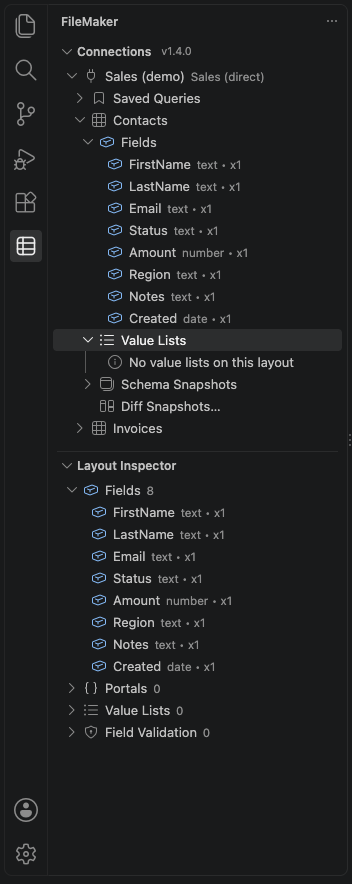
- The sidebar populates with the database's layouts, fields, value lists, saved queries, and schema snapshots.
Under the hood the extension is:
- Authenticating — opens a session against the Data API and stores the token in your OS keychain.
- Refreshing proactively — renews the token before its nominal 15-minute expiry, so long-running queries don't get kicked out.
- Retrying transient failures — network blips, 5xx errors, and timeouts are retried with exponential backoff so you don't have to.
If Connect fails, the error toast offers Retry, Edit Profile, and Details…. The Details document is redacted but includes the retry chain and the failing endpoint — useful for filing bug reports.
For a plain-words connection report without signing in, run FileMaker: Diagnose Connection. Once connected, FileMaker: Test My Server can run a separate read-only check; its optional scratch-record and script tests ask separately.